> ## Documentation Index
> Fetch the complete documentation index at: https://resources.begenuin.com/llms.txt
> Use this file to discover all available pages before exploring further.
# How to Create a Community
Creating a community within your platform is a straightforward process that helps you foster engagement and bring your audience together. Follow these steps to get started:
1. **Log in to Brand Control Center**\
Begin by logging into your Brand Control Center.
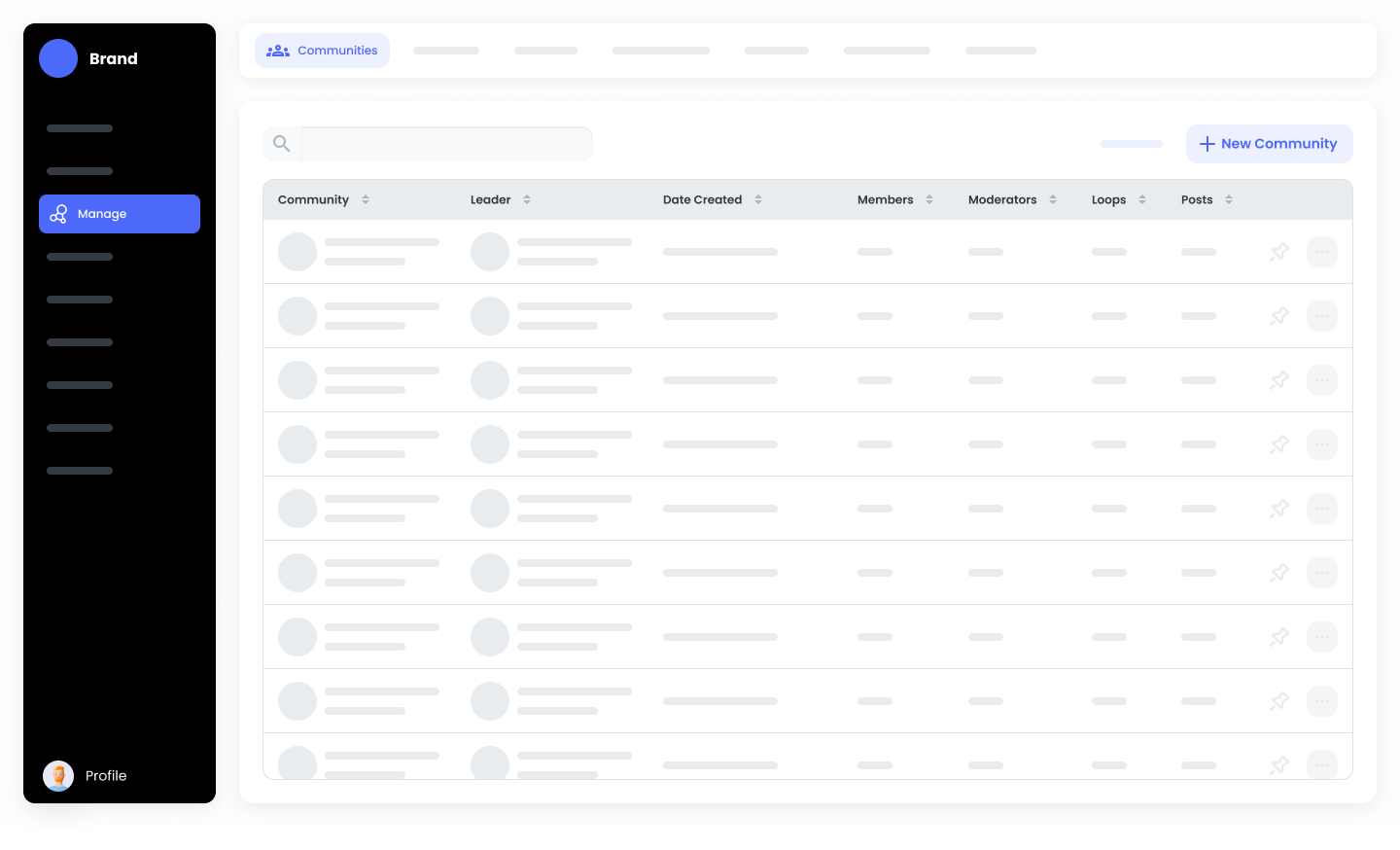
2. Navigate to Community Management\
From the dashboard, go to:\
**Manage > Communities**.
3. Create a New Community\
Click on the "**New Community**" button to start setting up your community space.
 4. Fill in Community Details\
You’ll need to provide key details such as:
* Community Image
* Banner
* Community Name
* Community Type
* Settings for visibility, including who can see the Loop.
4. Fill in Community Details\
You’ll need to provide key details such as:
* Community Image
* Banner
* Community Name
* Community Type
* Settings for visibility, including who can see the Loop.
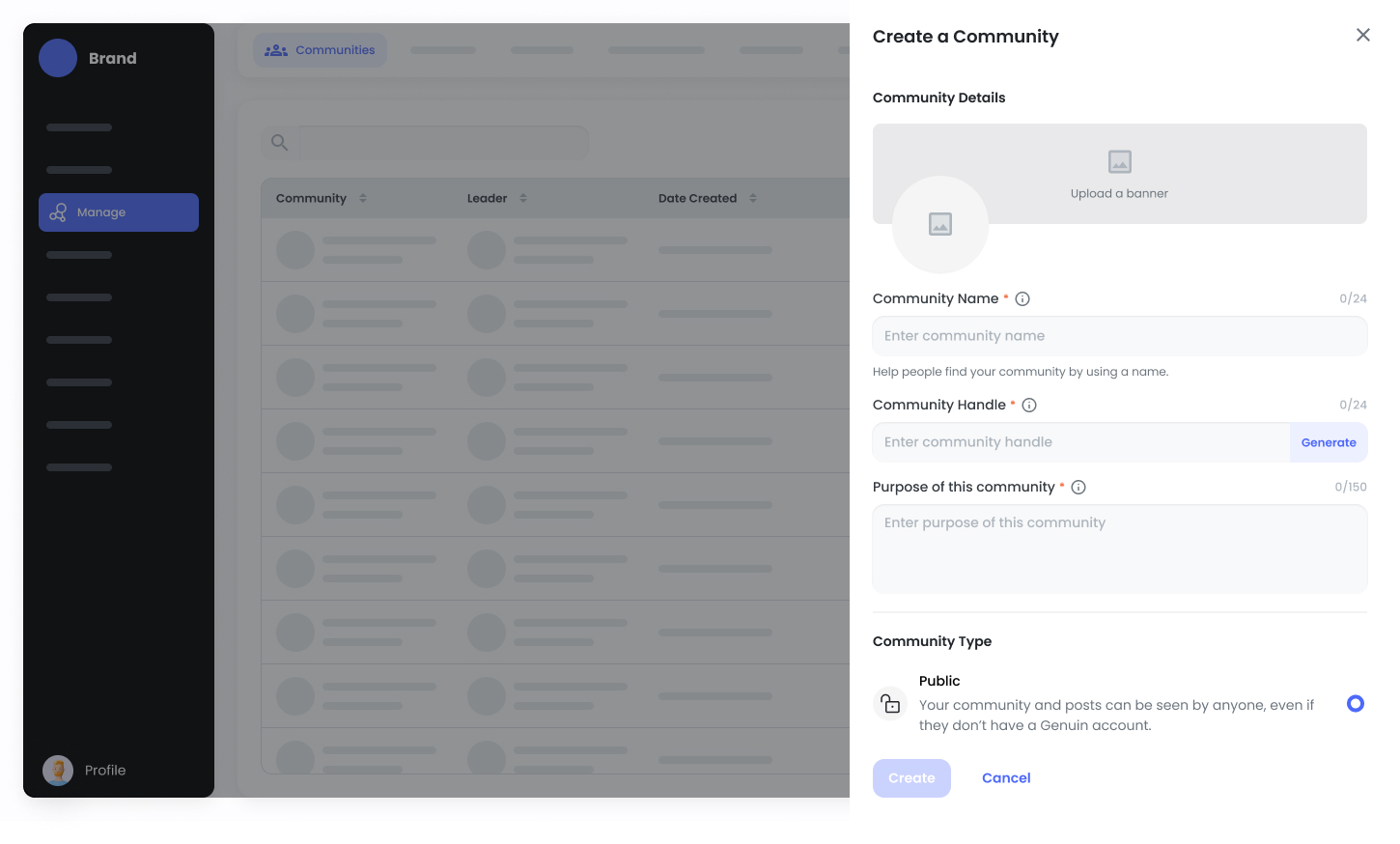 Once you’ve completed these fields, your community will be ready to launch, enabling you to engage directly with your audience and align the space with your Commerce Media Network’s objectives.