> ## Documentation Index
> Fetch the complete documentation index at: https://resources.begenuin.com/llms.txt
> Use this file to discover all available pages before exploring further.
# Upload
Do you have content in bulk? Upload the short form content to your platform all at once by using our Engage Functionality.
## Upload
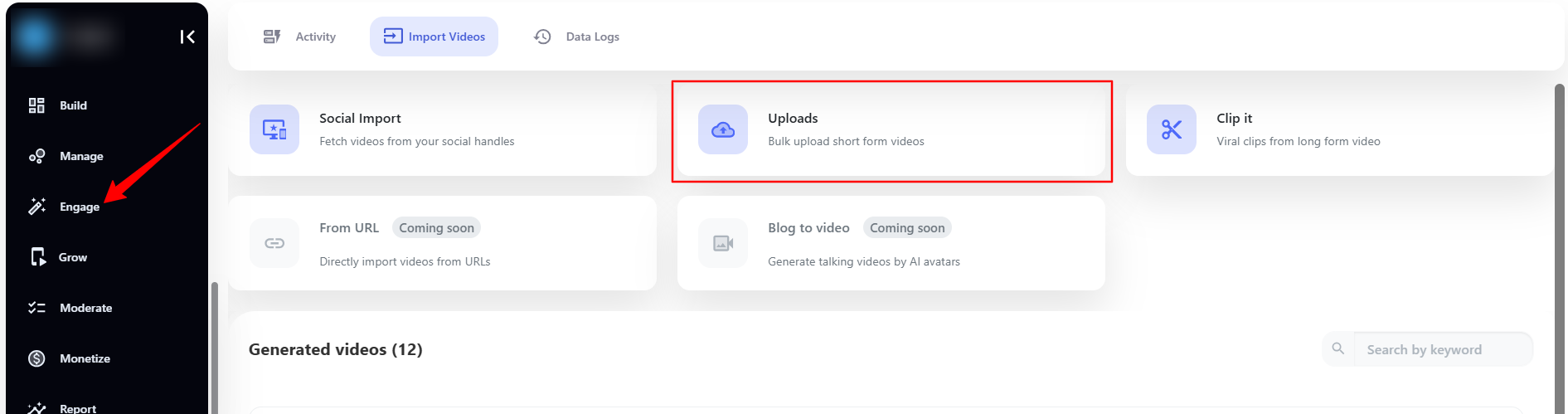
Navigate to **Engage > Import Videos > Uploads**, you can upload the videos to post it.
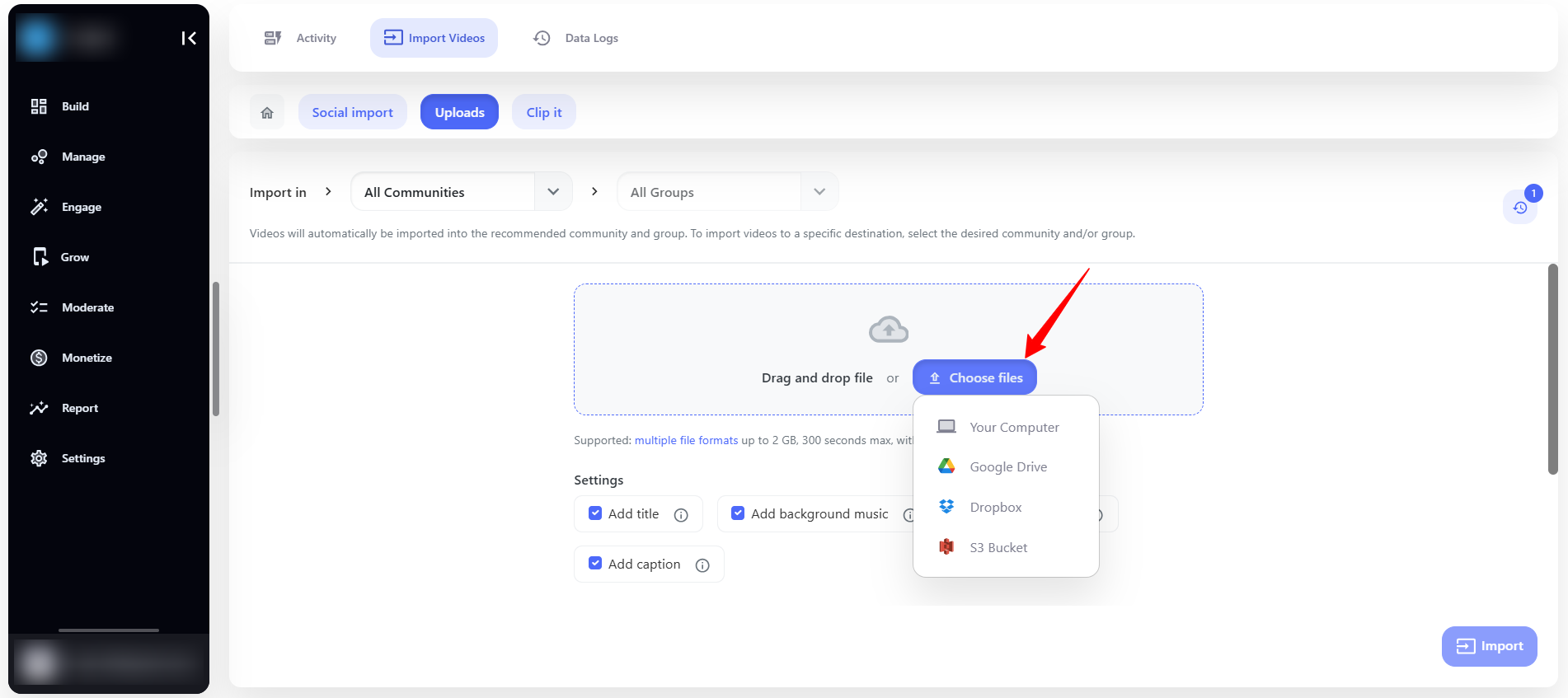
To upload the Video you can, drag and drop the videos or upload it from the **Computer**, **Google Drive**, **Dropbox**, and **S3 Bucket**.
Note: The duration of video shall be less than 300 seconds and up to 2 GB in size. Supported formats to upload files are mp4, mov, avi, wmv, mkv, webm.
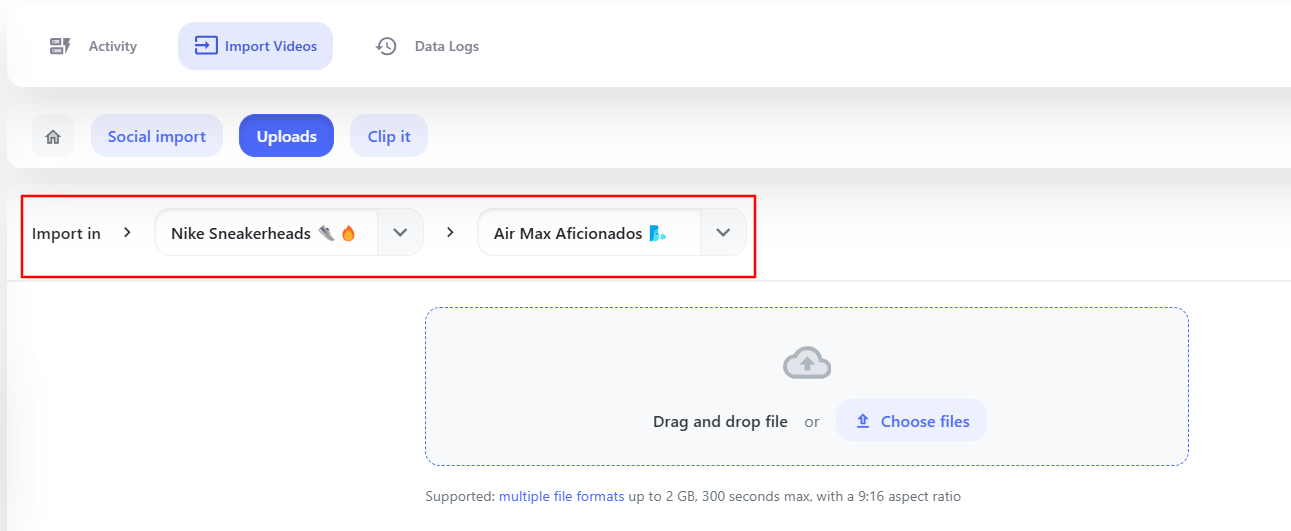
**Select Import Destination**: Choose the appropriate Community or Group where you want to import the video.
Once you have uploaded the video you can apply the below **additional setting** to it. These settings will help you generate engaging content and add it to your community.
## Additional Settings
After uploading, you can apply the following settings to upgrade your video experience.

### Add Title
Enable the **Add Title** feature to generate a title based on the video content.
### Add Caption
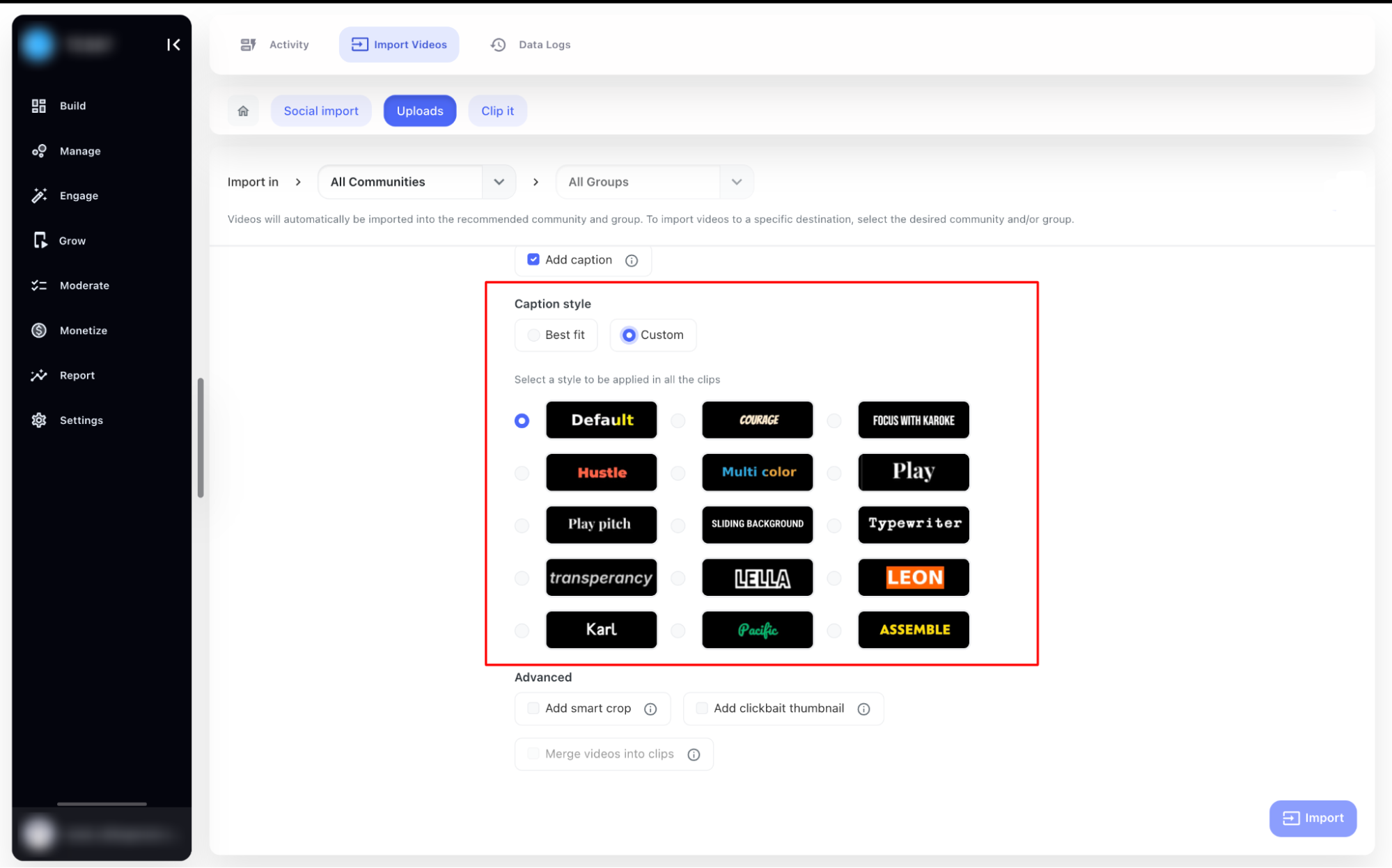
Enable the **Add Caption** feature to automatically generate captions for your video clips.
### Add Background Music
Enable this option to apply background music to uploaded video.
### Add Description
Enable this option to automatically generate a description for your video upto 2000 characters. Each clip will include a relevant description, making it easier for viewers to understand the context without additional manual input.
## Caption Style
* ### Best Fit
This option automatically adjusts captions for optimal readability and placement, ensuring they blend naturally with the video.
* ### Custom
Choose from multiple predefined caption styles to match your video's aesthetic. This allows you to select a preferred font, size, and color.
### Add Smart Crop
Smart crop features crop out the person from the video and displays in such a way that more focus is on the person who is talking. Below is an example of it.
### Clickbait Thumbnail
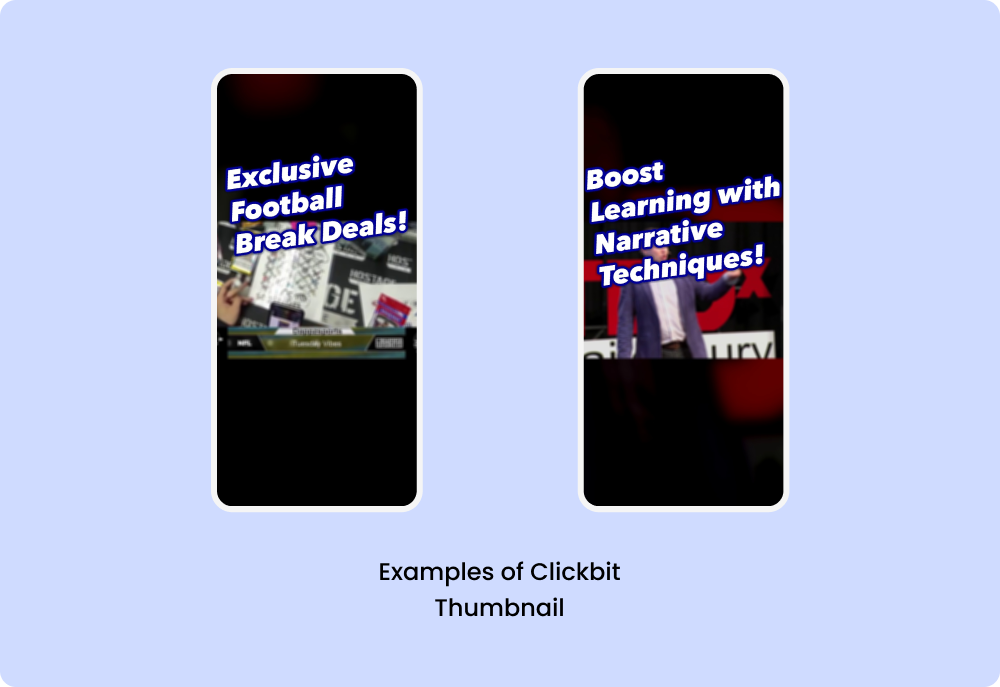
If you want to generate the thumbnail with text then enable this feature. Thumbnail would be the best frame fetched from the video and the text will be applied which will be related to the video. Here is an example of it.
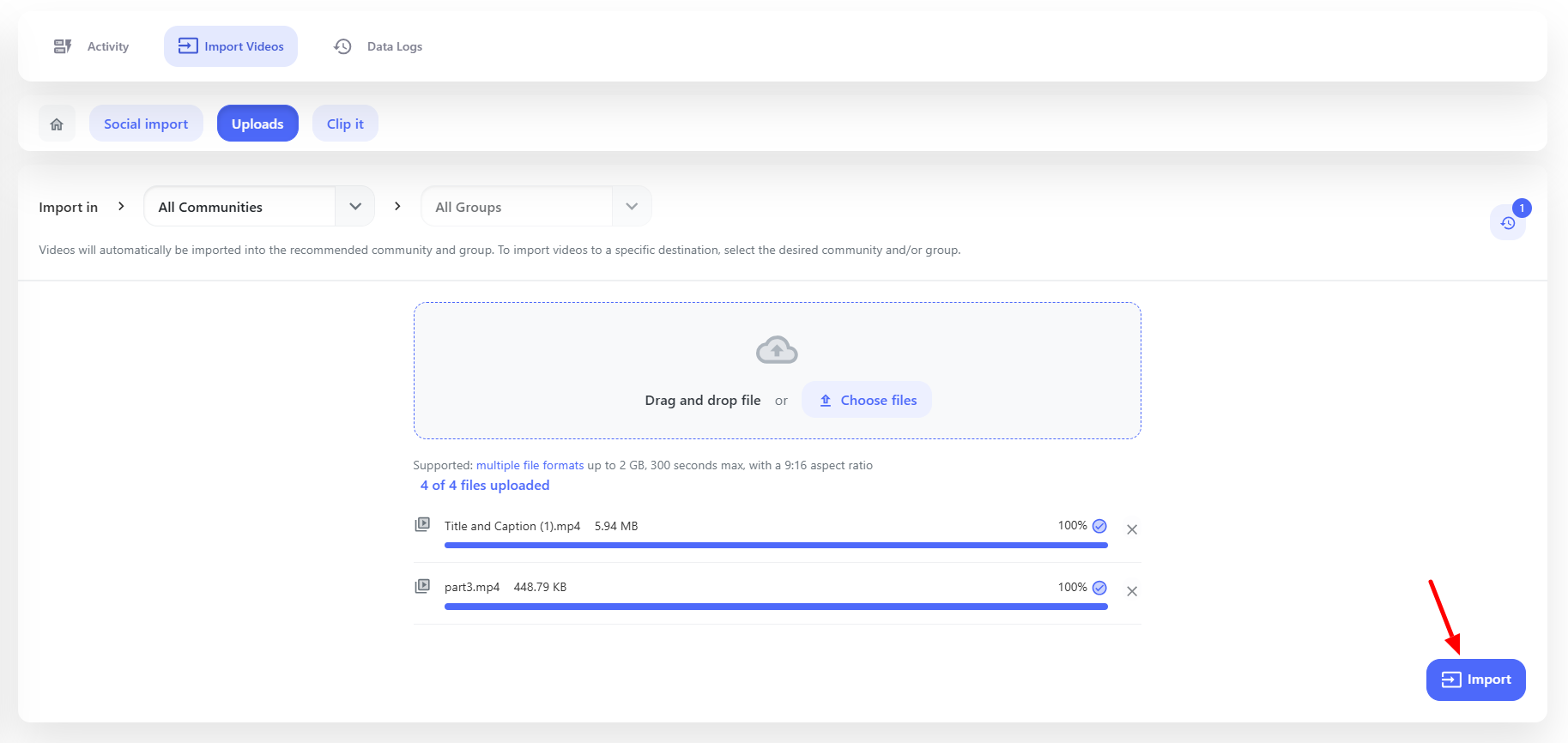
You selected the additional settings? Great! Now its time to import the videos. Once you click the **Import** button, the videos will be imported to the ecosystem.
## Data Logs
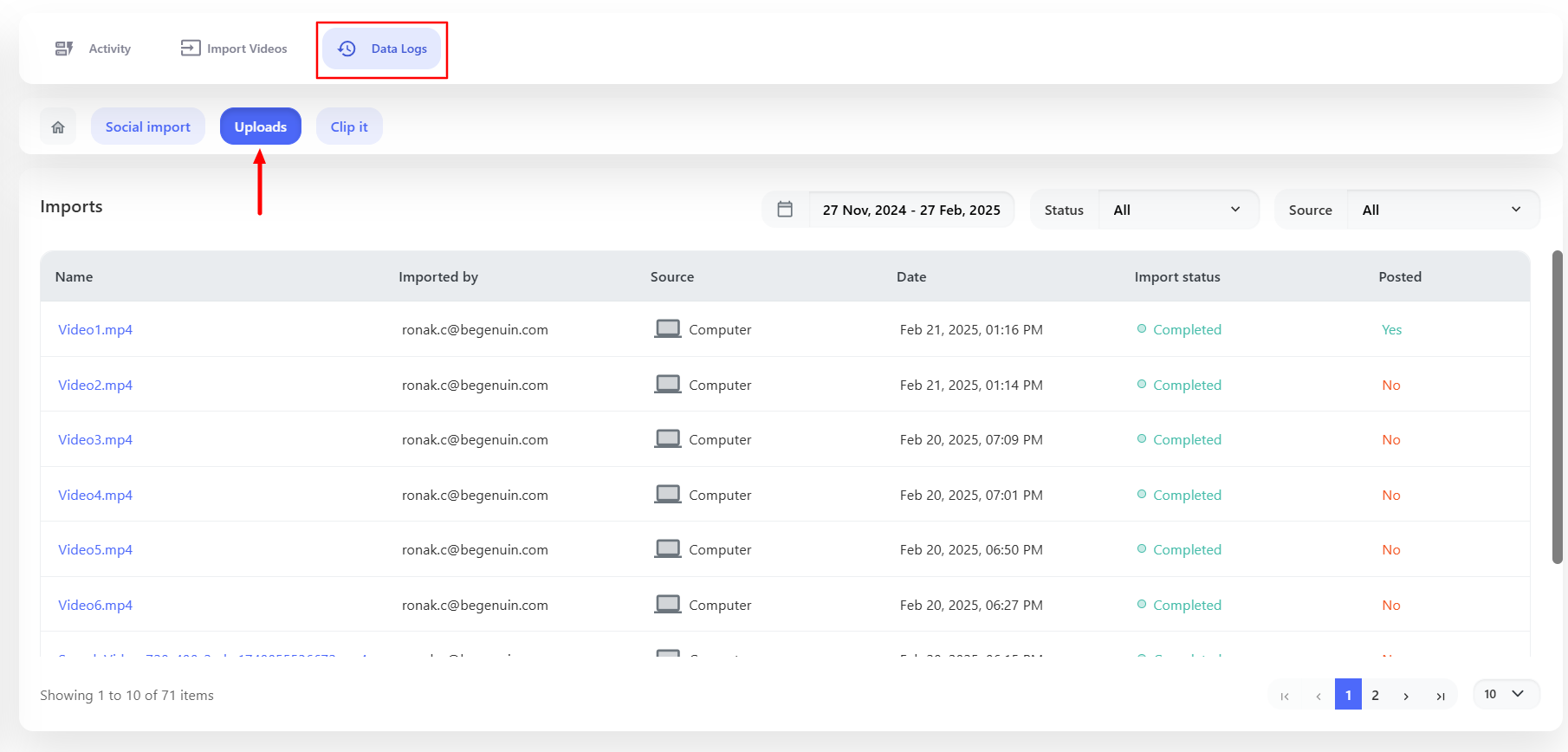
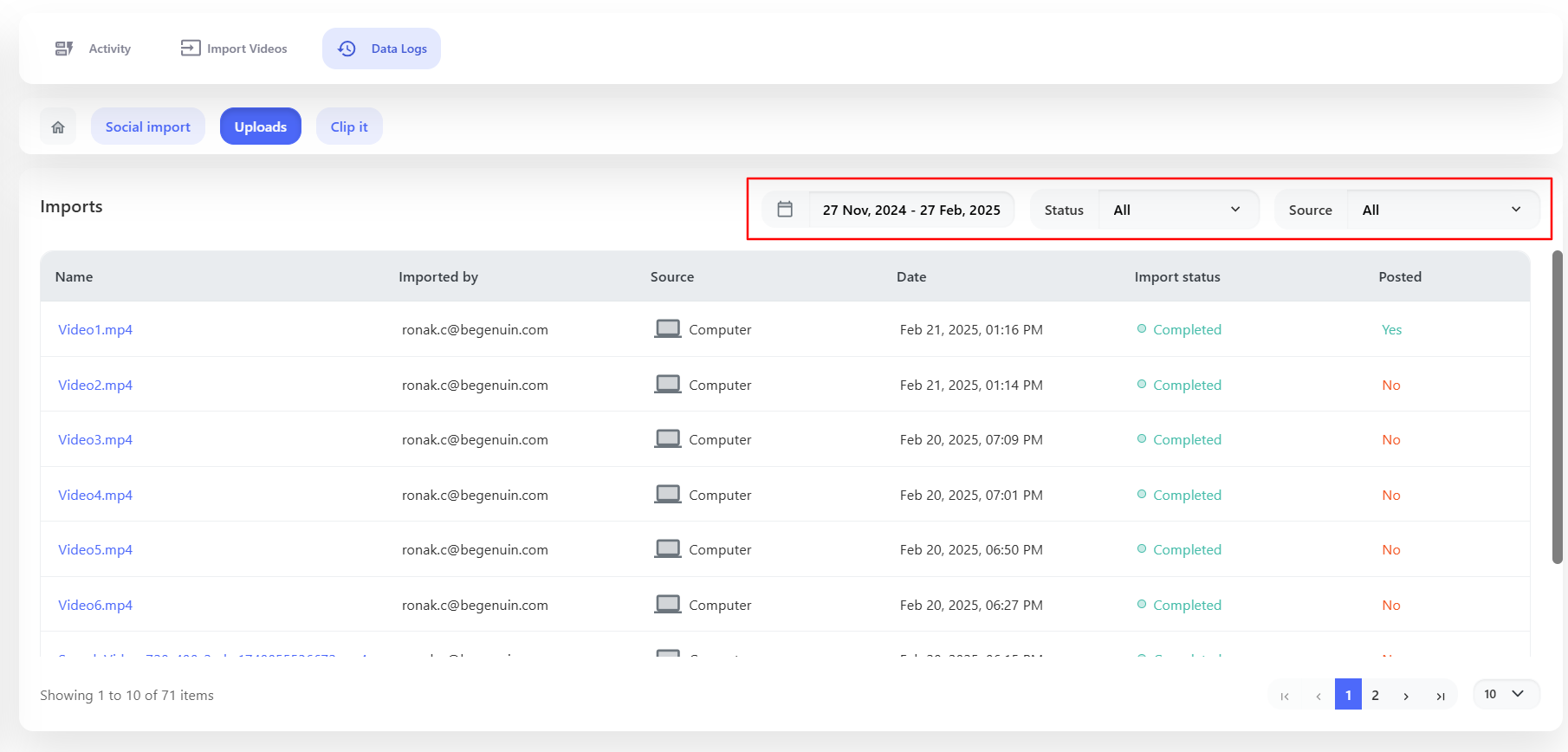
You can see the import status from the **Data Logs > Uploads** and other details like **Name**, **Date**, **Import Status** and **Posted** (Yes/No).
You can also filter the data based on the **Dates**, **Status**, and **Source**.
The **Completed** status, depicts that the videos are successfully imported and you can **Approve** it to post on your platform.
## Activity
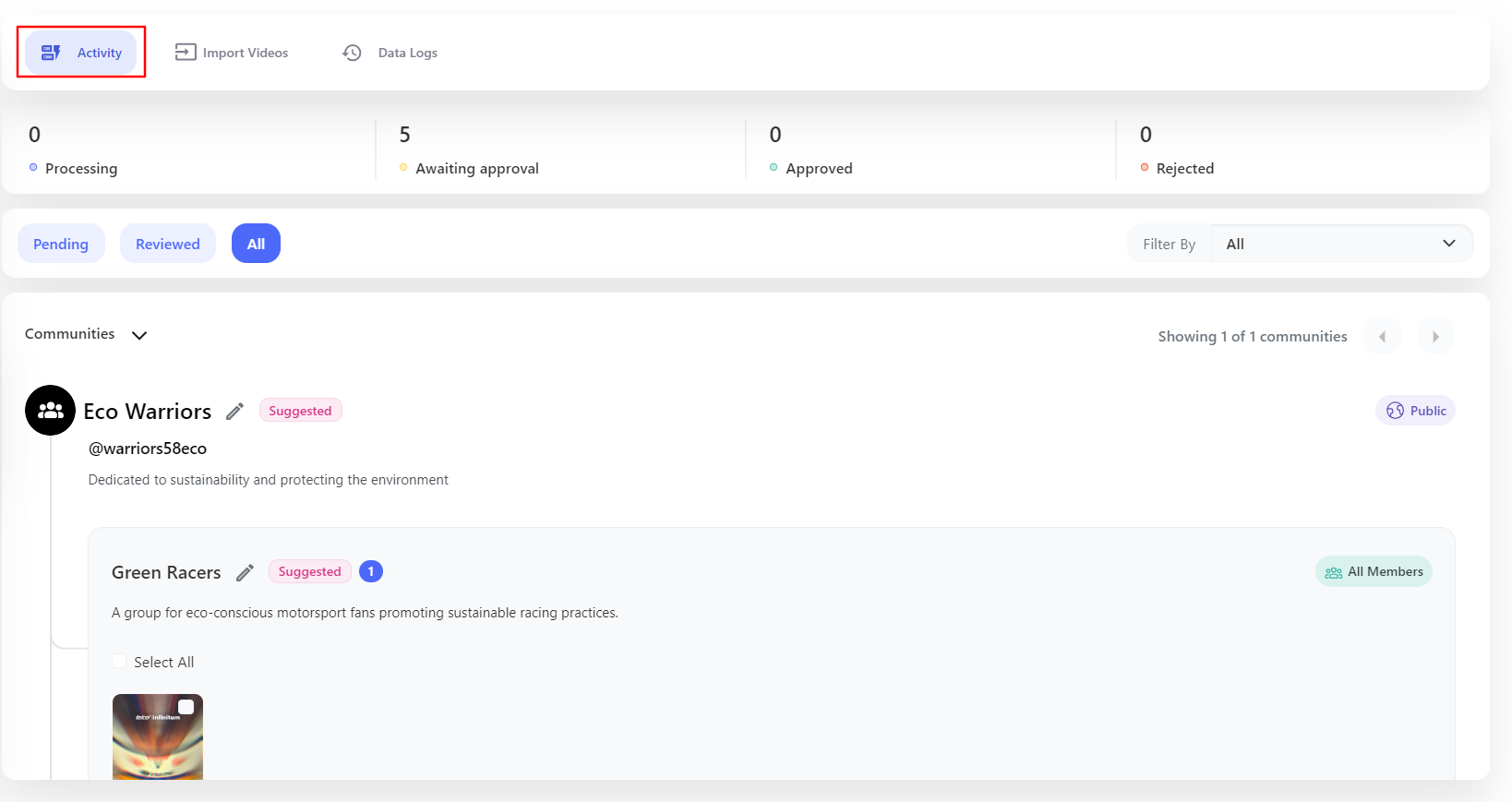
In the Activity section, you can see how many videos are being **Processed**, **Awaiting Approval**, **Approved**, and **Rejected**.
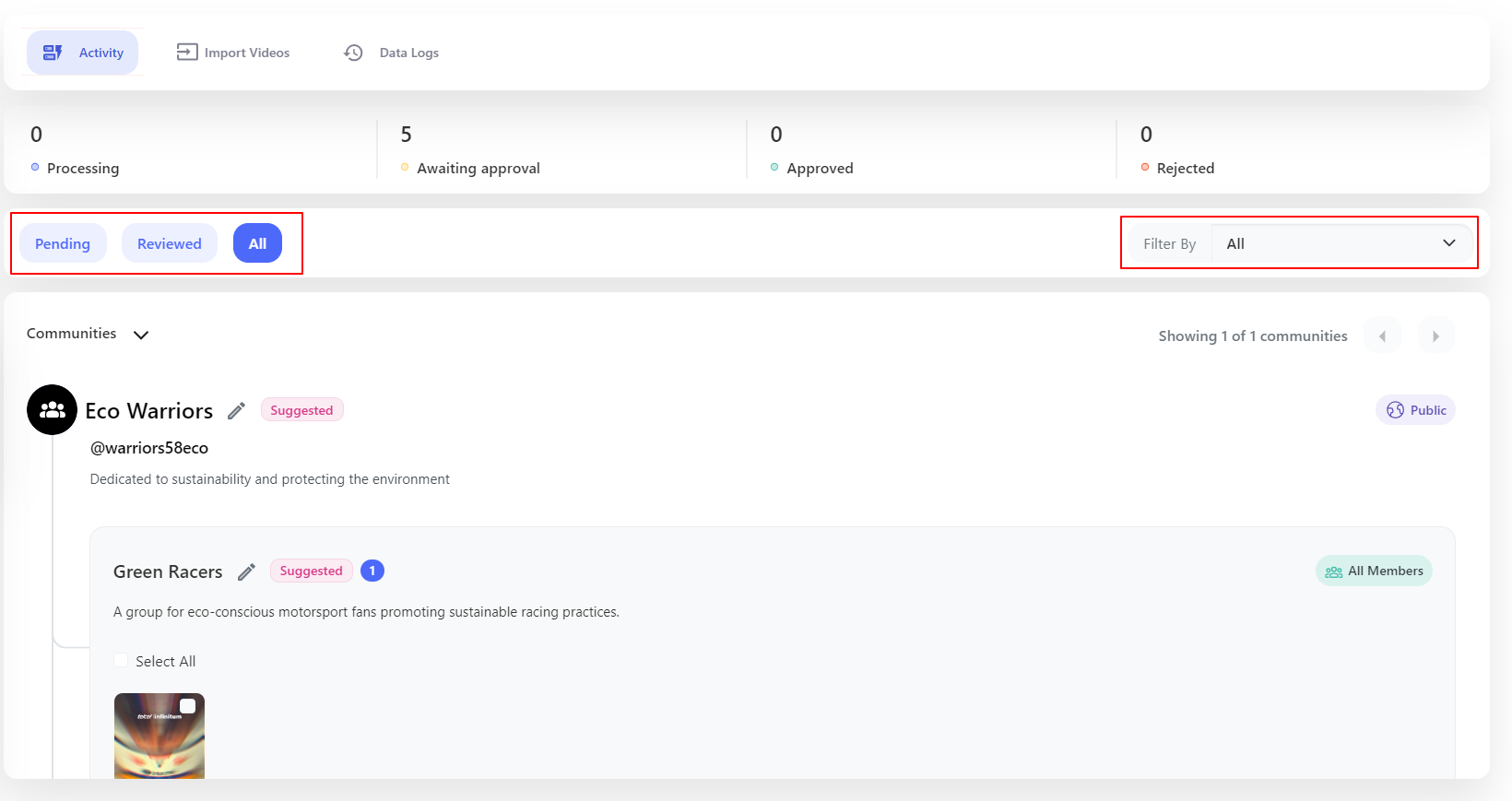
You can filter the data from **Social Import**, **Uploads**, or **Clipit** or you can directly view the **Pending** to review, **Reviewed**, or **All** Videos.
### Approve/Reject Video
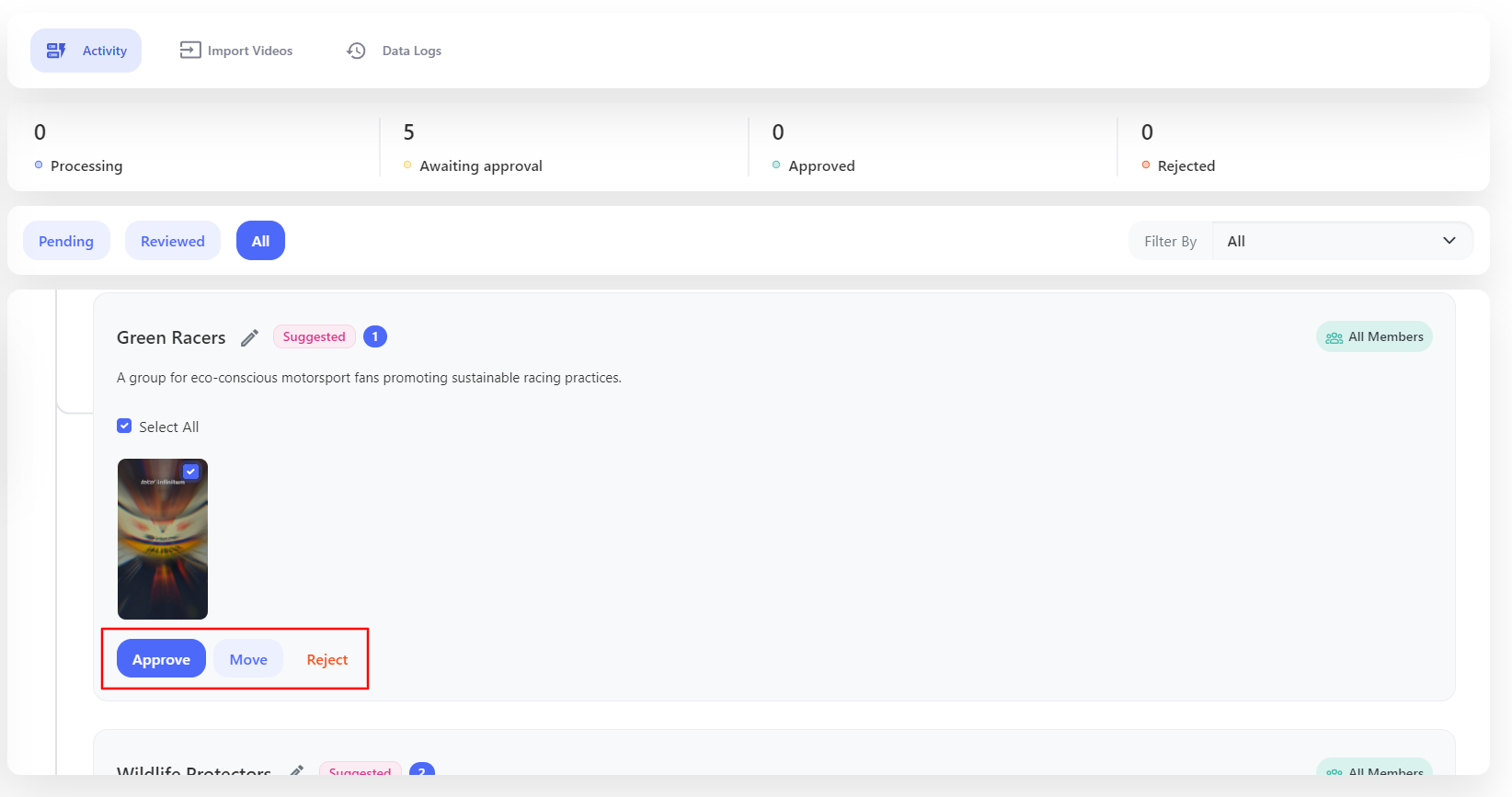
Based on the content of Video, you can view the suggested **Community** and **Group** name. Within the Group name your uploaded video will be visible. You can select the video and **Approve** it to post it or you can **Reject** it if you don’t like the video.
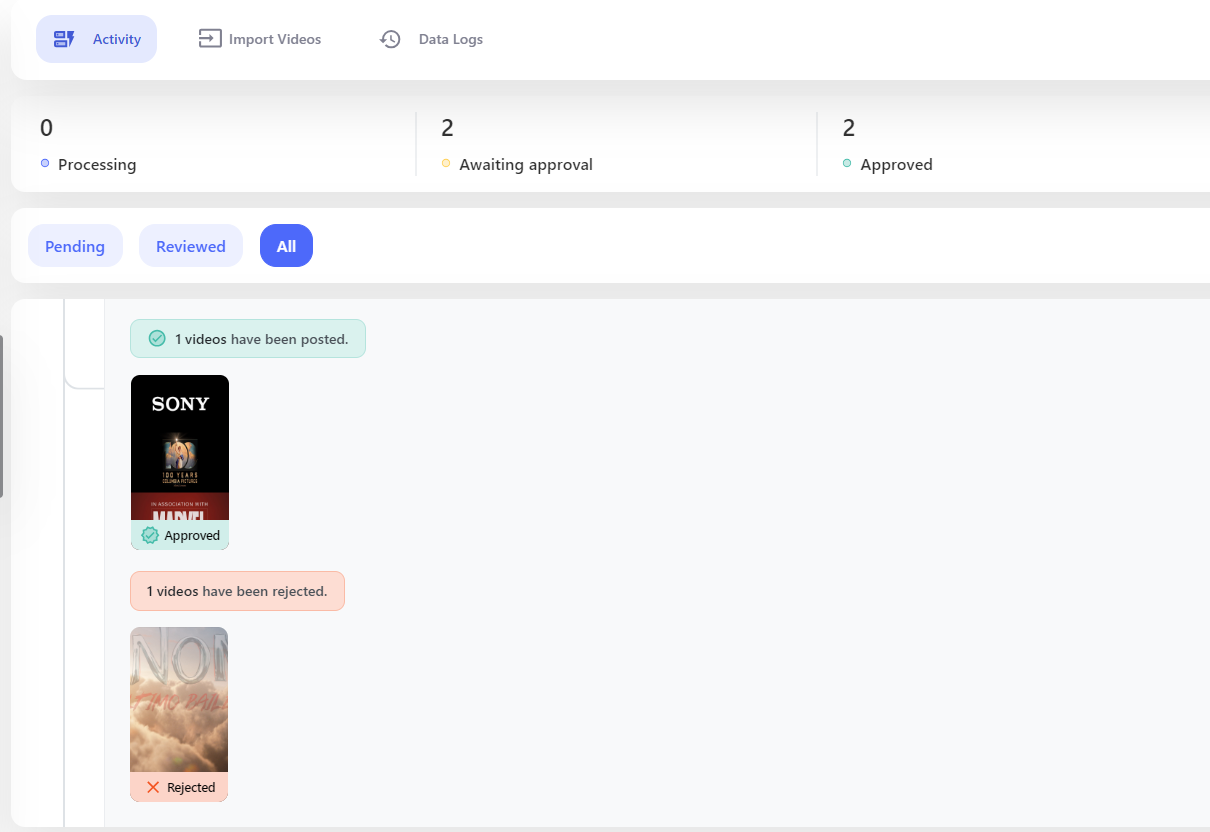
Below is an example of **Approved** and **Rejected** video.
### Move
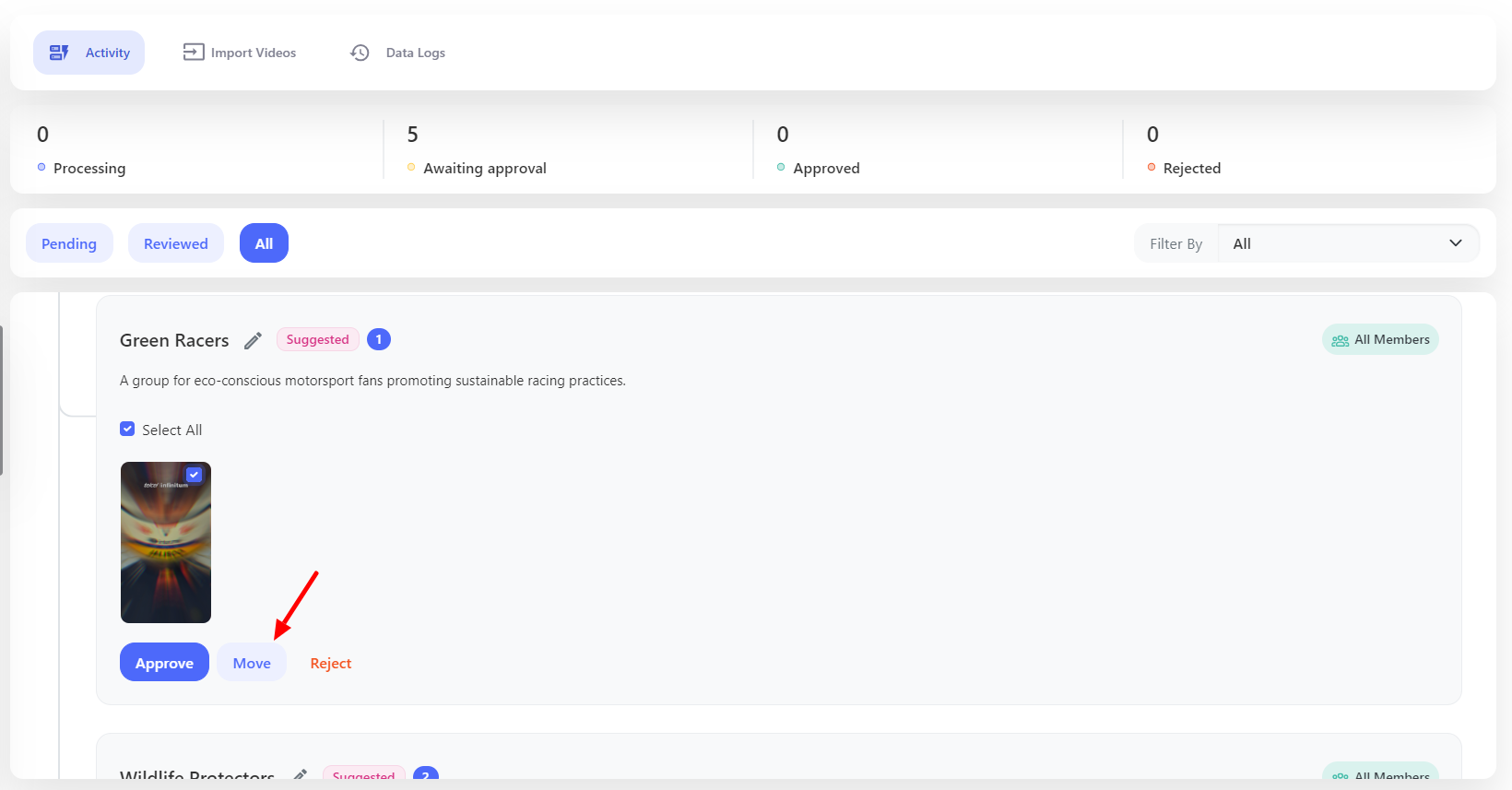
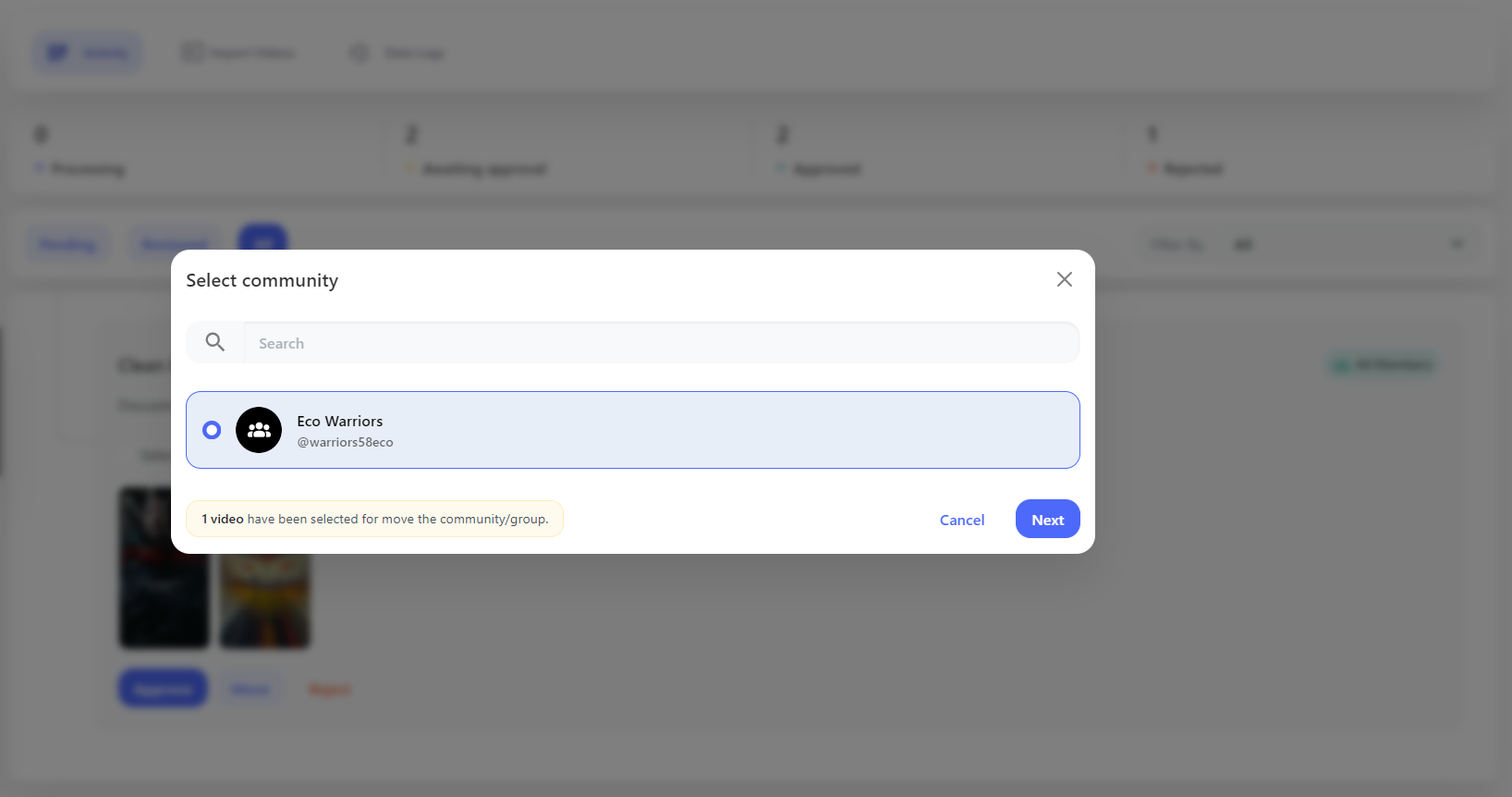
You can also move the video to another community and group, if the current doesn’t seem the correct community or group.
### View
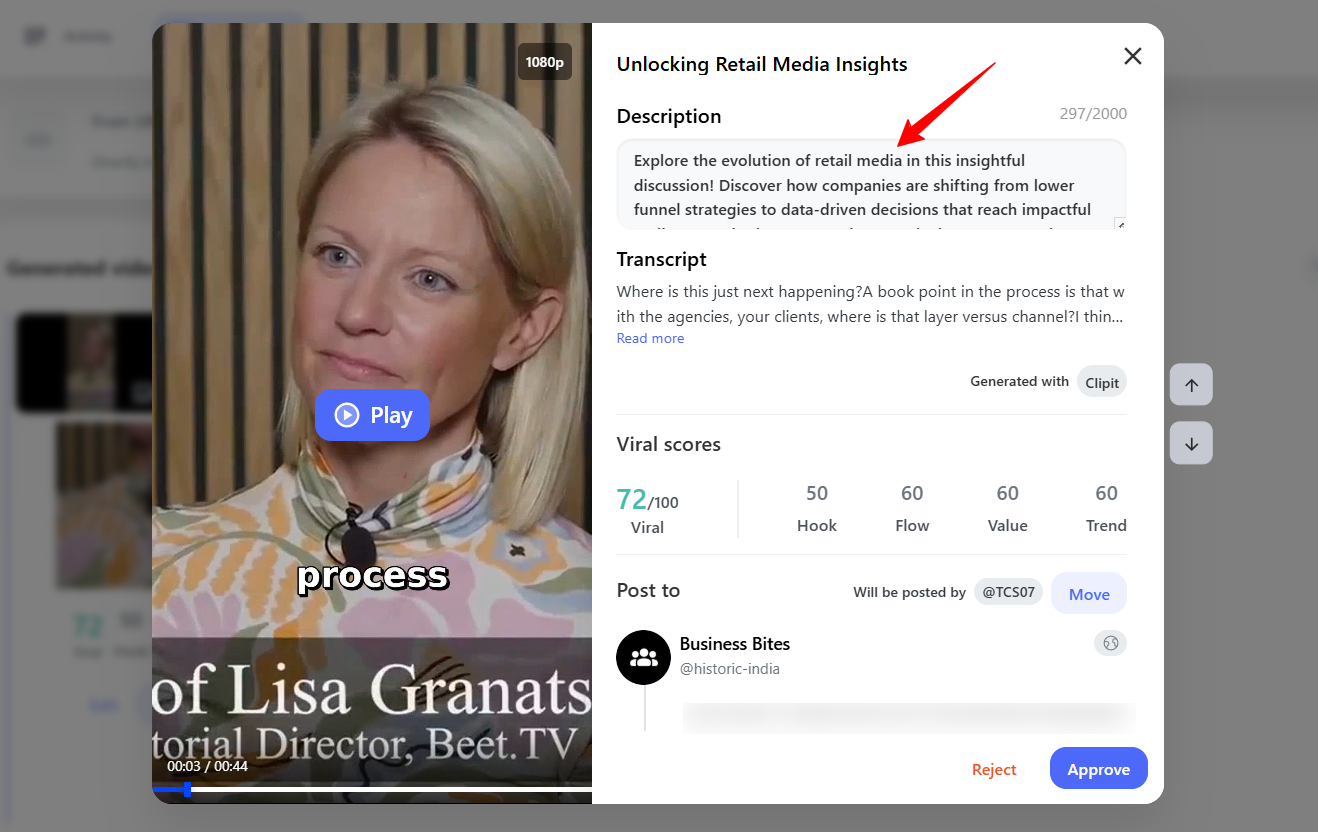
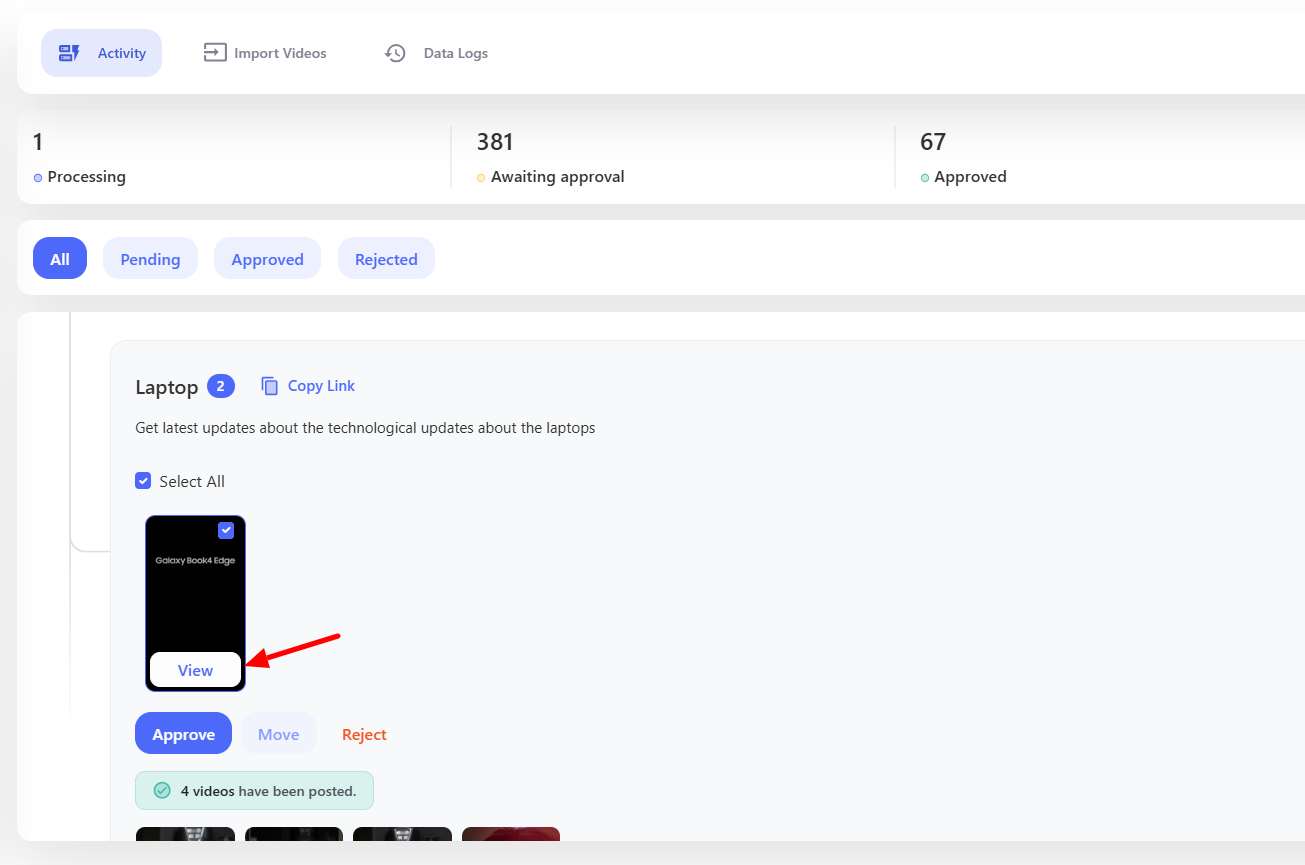
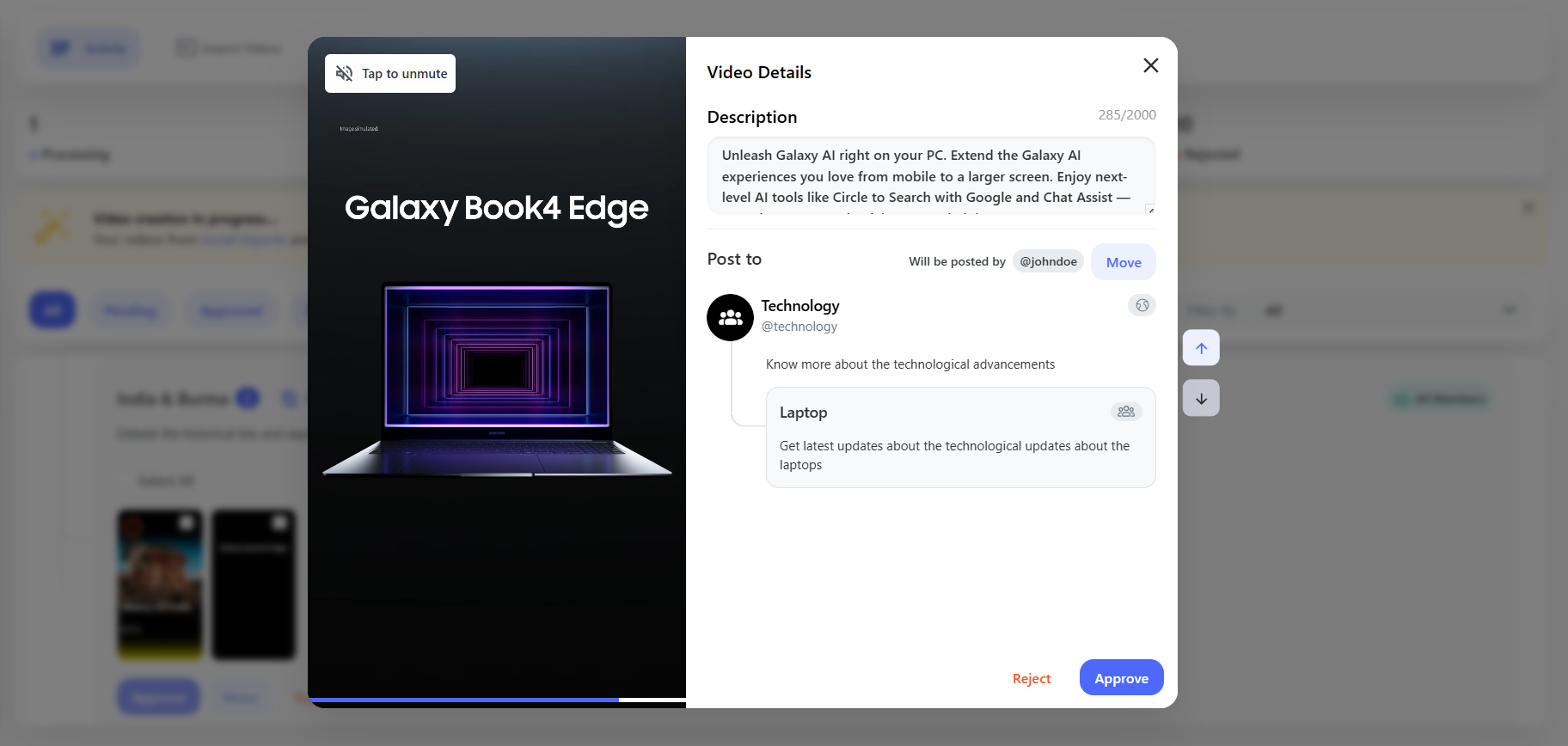
By clicking on the **View** button, you can see the video, along with its details and **Approve/Reject** options.
### Change Community/Group Name
You don’t like the generated community/group name? You can change it as per your requirement by clicking this edit icon.

Slider from the right side will open up where you can change the details as per your requirement.

 ## Upload
Navigate to **Engage > Import Videos > Uploads**, you can upload the videos to post it.
To upload the Video you can, drag and drop the videos or upload it from the **Computer**, **Google Drive**, **Dropbox**, and **S3 Bucket**.
## Upload
Navigate to **Engage > Import Videos > Uploads**, you can upload the videos to post it.
To upload the Video you can, drag and drop the videos or upload it from the **Computer**, **Google Drive**, **Dropbox**, and **S3 Bucket**.
 Once you have uploaded the video you can apply the below **additional setting** to it. These settings will help you generate engaging content and add it to your community.
## Additional Settings
After uploading, you can apply the following settings to upgrade your video experience.

### Add Title
Enable the **Add Title** feature to generate a title based on the video content.
Once you have uploaded the video you can apply the below **additional setting** to it. These settings will help you generate engaging content and add it to your community.
## Additional Settings
After uploading, you can apply the following settings to upgrade your video experience.

### Add Title
Enable the **Add Title** feature to generate a title based on the video content.
 ## Caption Style
* ### Best Fit
This option automatically adjusts captions for optimal readability and placement, ensuring they blend naturally with the video.
* ### Custom
Choose from multiple predefined caption styles to match your video's aesthetic. This allows you to select a preferred font, size, and color.
## Caption Style
* ### Best Fit
This option automatically adjusts captions for optimal readability and placement, ensuring they blend naturally with the video.
* ### Custom
Choose from multiple predefined caption styles to match your video's aesthetic. This allows you to select a preferred font, size, and color.
 ### Add Smart Crop
Smart crop features crop out the person from the video and displays in such a way that more focus is on the person who is talking. Below is an example of it.
### Add Smart Crop
Smart crop features crop out the person from the video and displays in such a way that more focus is on the person who is talking. Below is an example of it.
 You selected the additional settings? Great! Now its time to import the videos. Once you click the **Import** button, the videos will be imported to the ecosystem.
 ## Data Logs
You can see the import status from the **Data Logs > Uploads** and other details like **Name**, **Date**, **Import Status** and **Posted** (Yes/No).
## Data Logs
You can see the import status from the **Data Logs > Uploads** and other details like **Name**, **Date**, **Import Status** and **Posted** (Yes/No).
 You can also filter the data based on the **Dates**, **Status**, and **Source**.
 The **Completed** status, depicts that the videos are successfully imported and you can **Approve** it to post on your platform.
## Activity
The **Completed** status, depicts that the videos are successfully imported and you can **Approve** it to post on your platform.
## Activity
 In the Activity section, you can see how many videos are being **Processed**, **Awaiting Approval**, **Approved**, and **Rejected**.
 You can filter the data from **Social Import**, **Uploads**, or **Clipit** or you can directly view the **Pending** to review, **Reviewed**, or **All** Videos.
### Approve/Reject Video
Based on the content of Video, you can view the suggested **Community** and **Group** name. Within the Group name your uploaded video will be visible. You can select the video and **Approve** it to post it or you can **Reject** it if you don’t like the video.
You can filter the data from **Social Import**, **Uploads**, or **Clipit** or you can directly view the **Pending** to review, **Reviewed**, or **All** Videos.
### Approve/Reject Video
Based on the content of Video, you can view the suggested **Community** and **Group** name. Within the Group name your uploaded video will be visible. You can select the video and **Approve** it to post it or you can **Reject** it if you don’t like the video.
 Below is an example of **Approved** and **Rejected** video.
 ### Move
You can also move the video to another community and group, if the current doesn’t seem the correct community or group.
### Move
You can also move the video to another community and group, if the current doesn’t seem the correct community or group.
 ### View
By clicking on the **View** button, you can see the video, along with its details and **Approve/Reject** options.
### View
By clicking on the **View** button, you can see the video, along with its details and **Approve/Reject** options.
 ### Change Community/Group Name
You don’t like the generated community/group name? You can change it as per your requirement by clicking this edit icon.

Slider from the right side will open up where you can change the details as per your requirement.

### Change Community/Group Name
You don’t like the generated community/group name? You can change it as per your requirement by clicking this edit icon.

Slider from the right side will open up where you can change the details as per your requirement.
