> ## Documentation Index
> Fetch the complete documentation index at: https://resources.begenuin.com/llms.txt
> Use this file to discover all available pages before exploring further.
# Big Query
Big query offers access to structured **data storage**, **analytics** which is cost effective and widely used by multiple business. You can easily connect your BigQuery account to the **BCC (Brand Control Center)** and receive the [Zero party data](https://resources.begenuin.com/faqs/zero_party_data). Firstly follow the below steps to build the BigQuery connection with the Google Cloud account.
## Big Query
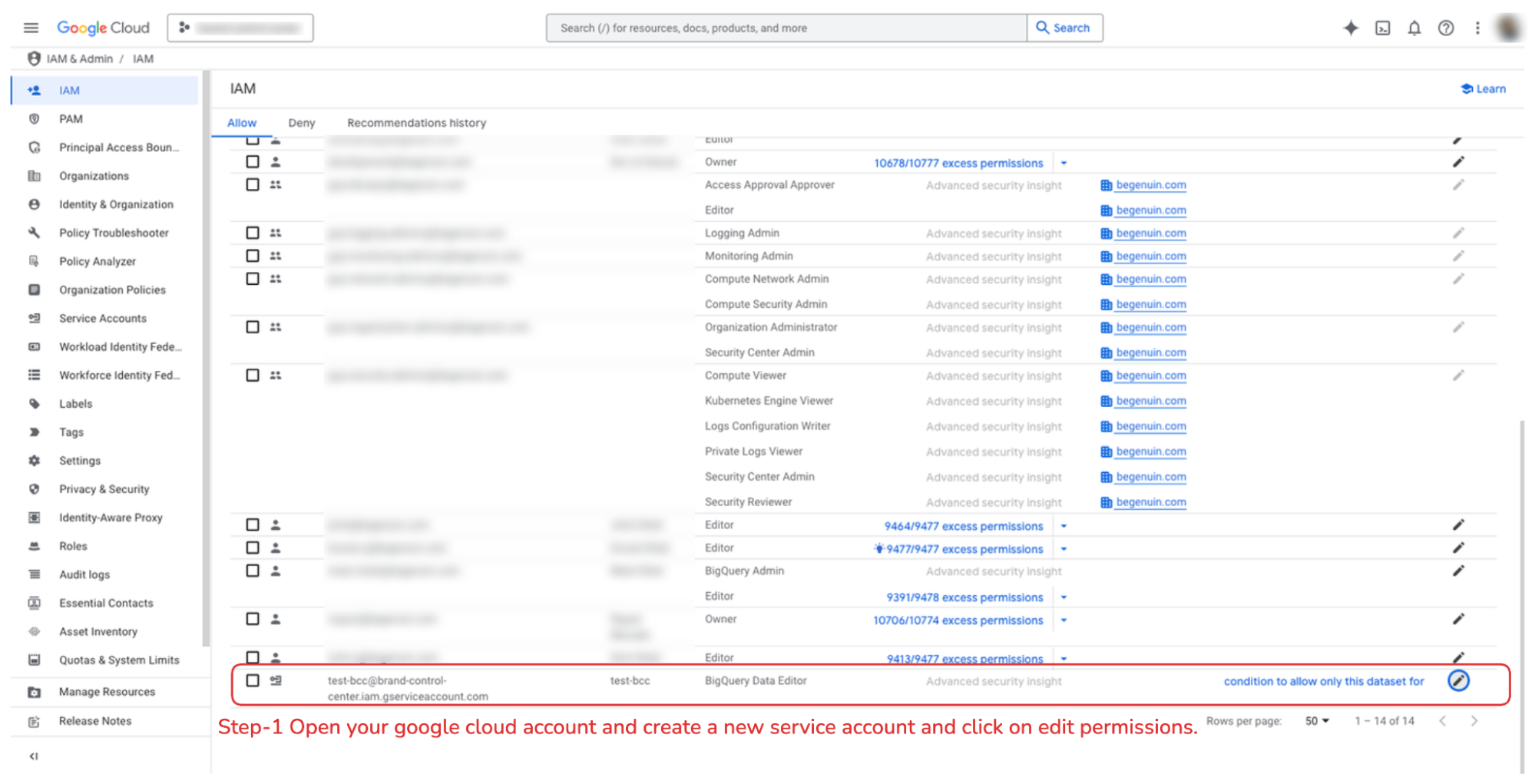
**Step 1**: Open your google cloud account, create a service account and click on **Edit** permission.
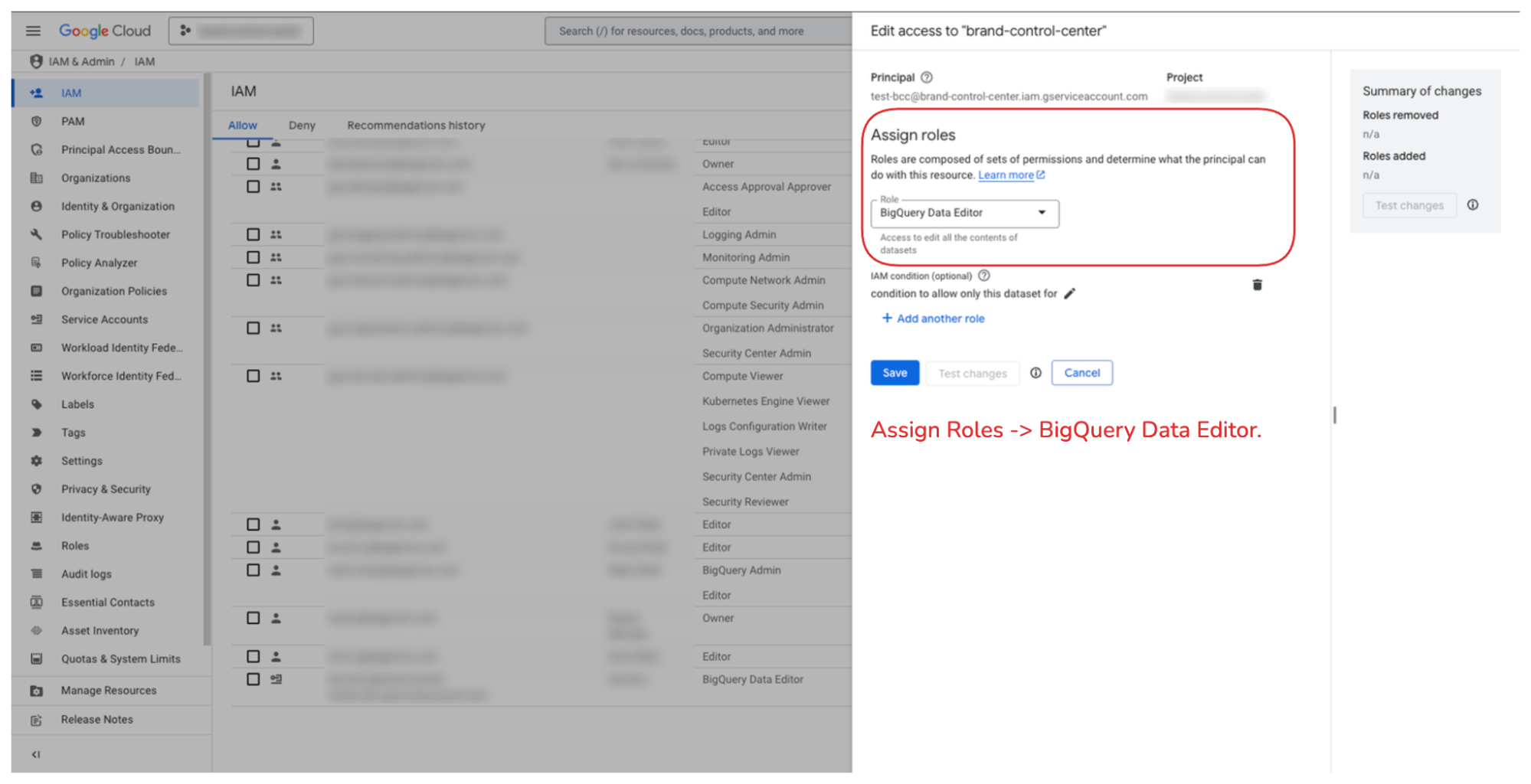
 **Step 2**: Assign the role.
* **2.1**: Role = BigQuery Data Editor
**Step 2**: Assign the role.
* **2.1**: Role = BigQuery Data Editor
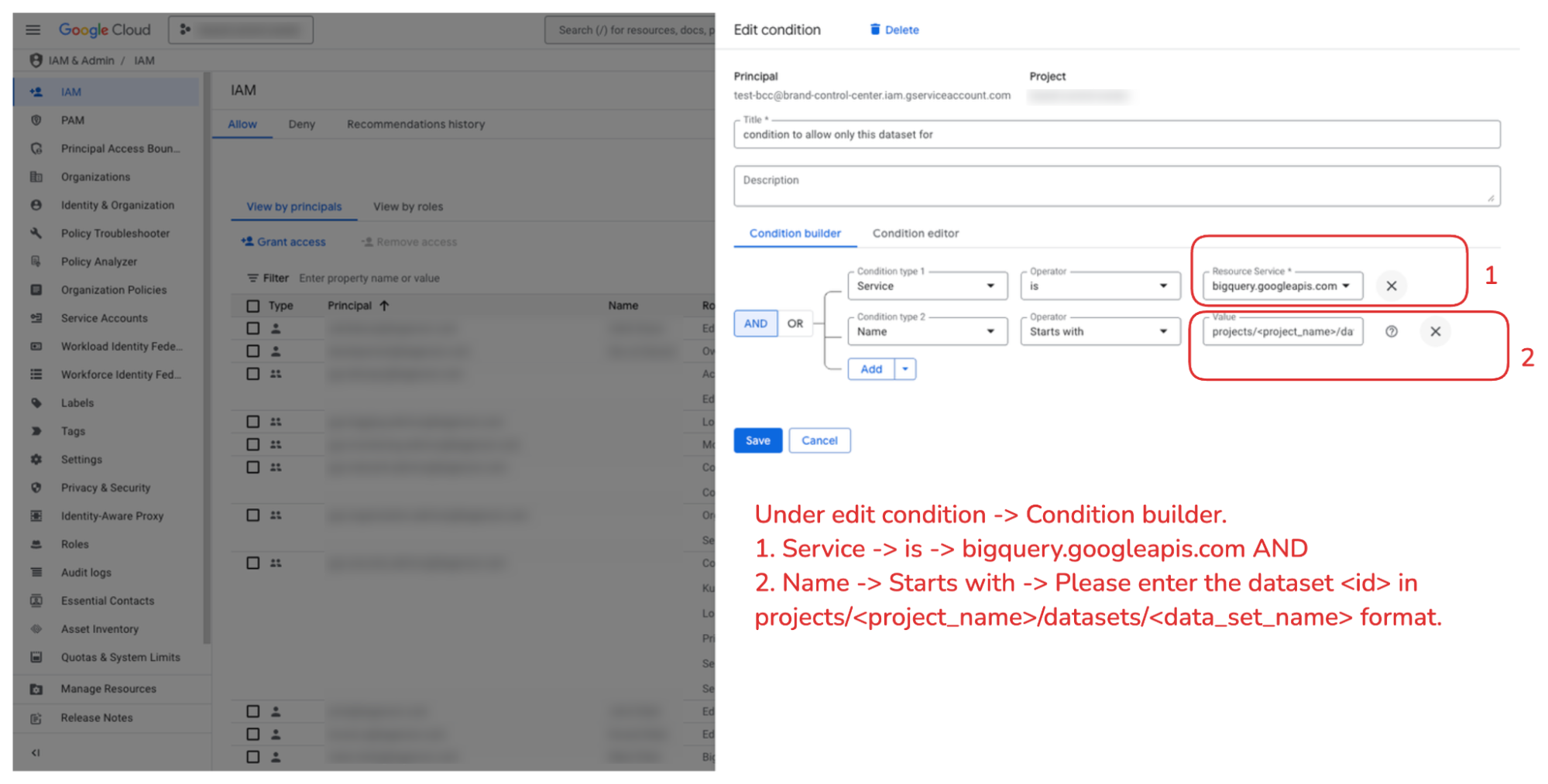
 **Step 3**: Set the condition as shown in the image.
* **3.1**: Set **Condition 1** as **Service** > **is** > **bigquery.googleapis.com**
* **3.2**: Set **Condition 2** as **Name** > **Starts with** > `projects//`
**Step 3**: Set the condition as shown in the image.
* **3.1**: Set **Condition 1** as **Service** > **is** > **bigquery.googleapis.com**
* **3.2**: Set **Condition 2** as **Name** > **Starts with** > `projects//`
 Following are the steps to connect your **BigQuery** account with BCC (Brand Control Center).
## Step 1: Login to BCC

## Step 2: Navigate to **Settings** > **Data Sources** > **Big Query**
Following are the steps to connect your **BigQuery** account with BCC (Brand Control Center).
## Step 1: Login to BCC

## Step 2: Navigate to **Settings** > **Data Sources** > **Big Query**
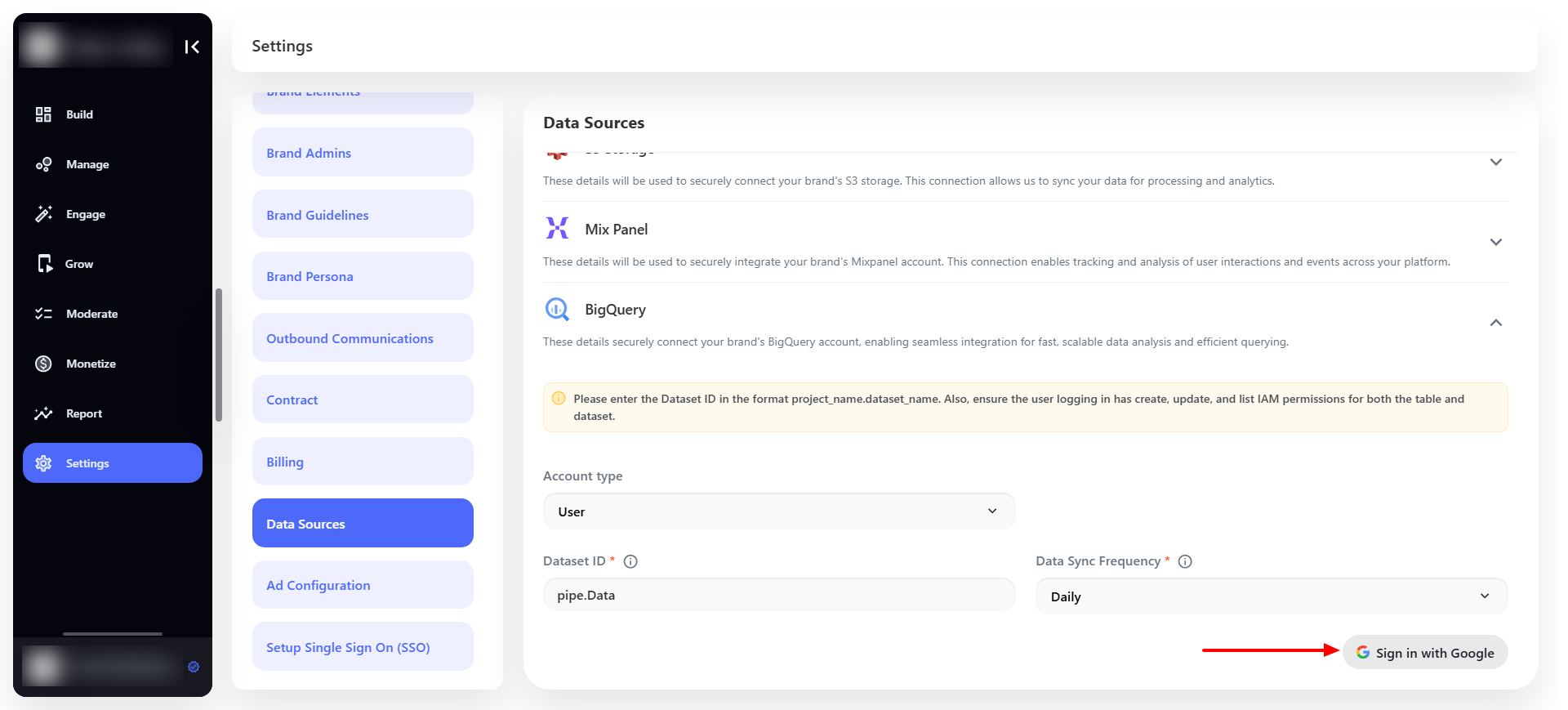
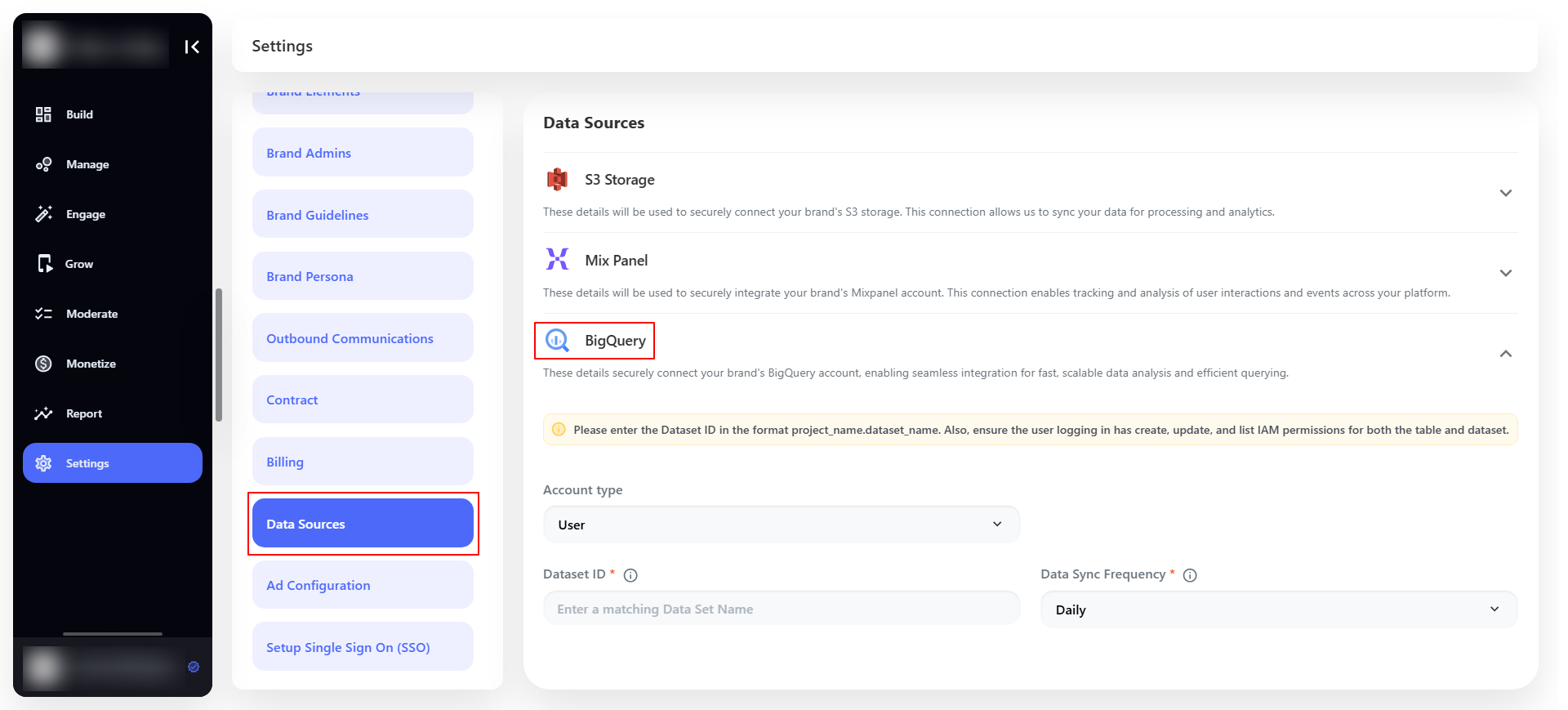 ## Step 3: **Select Account type** (**User** or **Service**),
### For User
Insert the **Dataset ID** (`project_name.dataset_name`) and set the **frequency** (**Daily**, **Weekly**, **Monthly**) to send the Data. **Sign in with Google** to connect the BigQuery account.
## Step 3: **Select Account type** (**User** or **Service**),
### For User
Insert the **Dataset ID** (`project_name.dataset_name`) and set the **frequency** (**Daily**, **Weekly**, **Monthly**) to send the Data. **Sign in with Google** to connect the BigQuery account.
 ### For Service
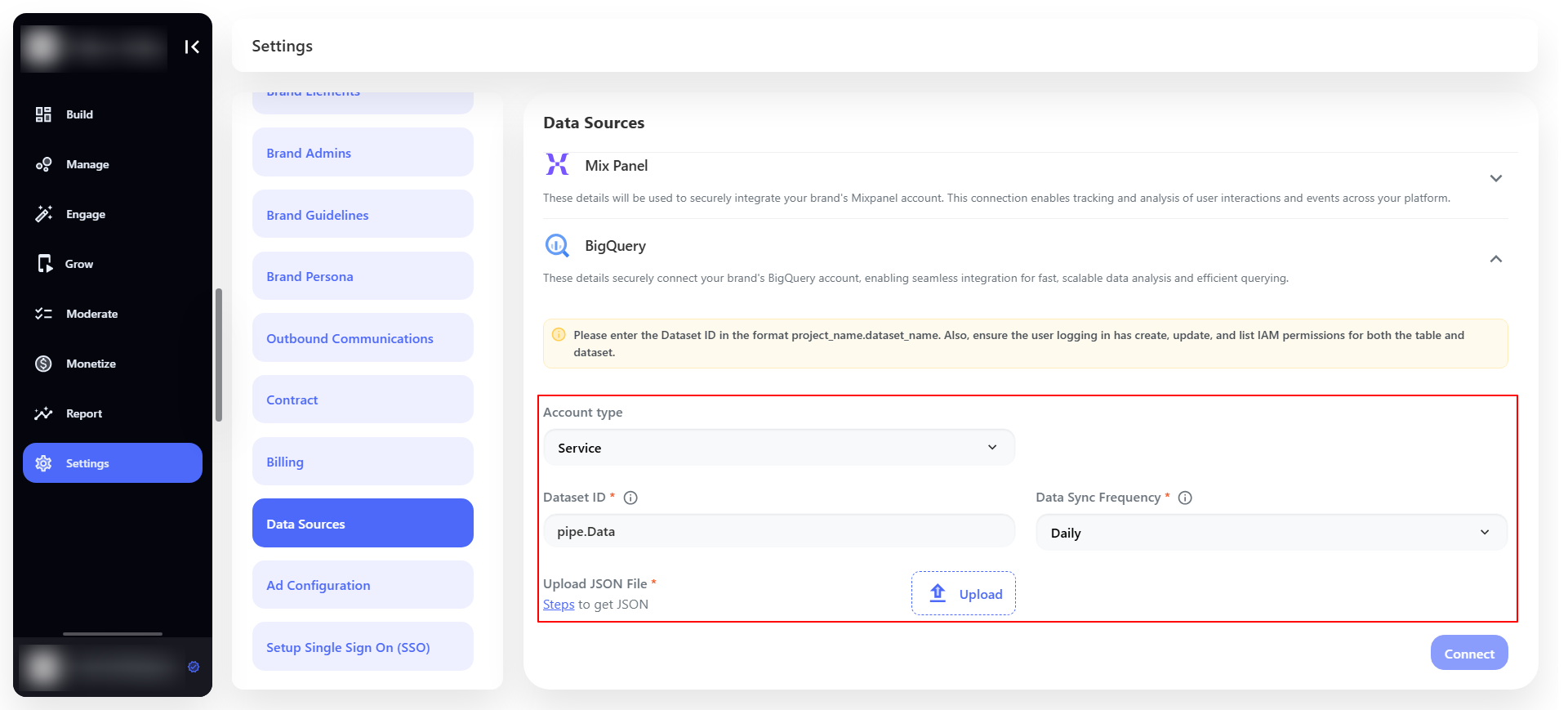 **Note:** If you have selected the **Service** as an **Account Type** then you have to upload the [JSON authentication file](https://support.google.com/a/answer/7378726?hl=en#:~:text=the%20service%20account-,Click%20APIs%20&%20Services,Click%20Close) along with dataset name
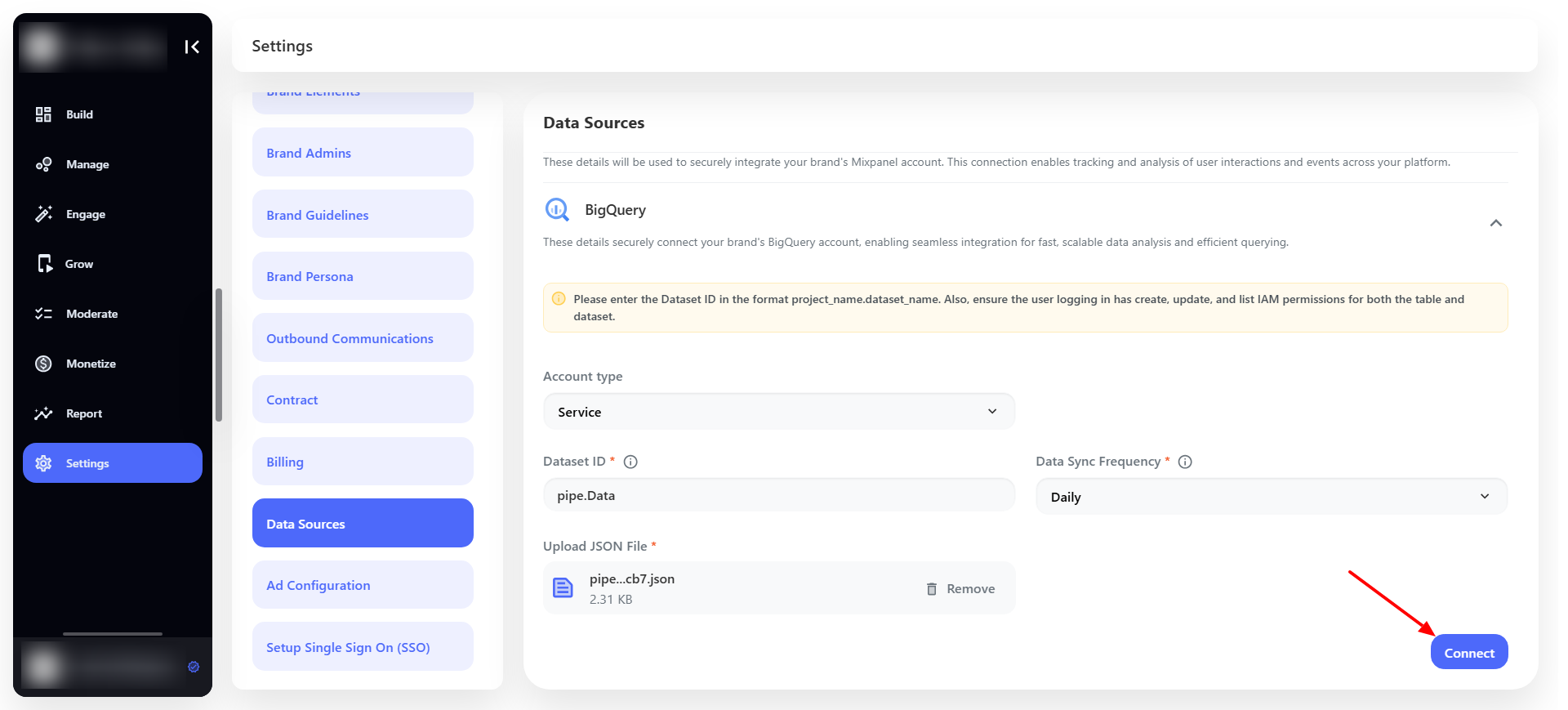
After uploading all the details click on the **Connect** button to connect the **BigQuery** account.
**Note:** If you have selected the **Service** as an **Account Type** then you have to upload the [JSON authentication file](https://support.google.com/a/answer/7378726?hl=en#:~:text=the%20service%20account-,Click%20APIs%20&%20Services,Click%20Close) along with dataset name
After uploading all the details click on the **Connect** button to connect the **BigQuery** account.
 ## Connection
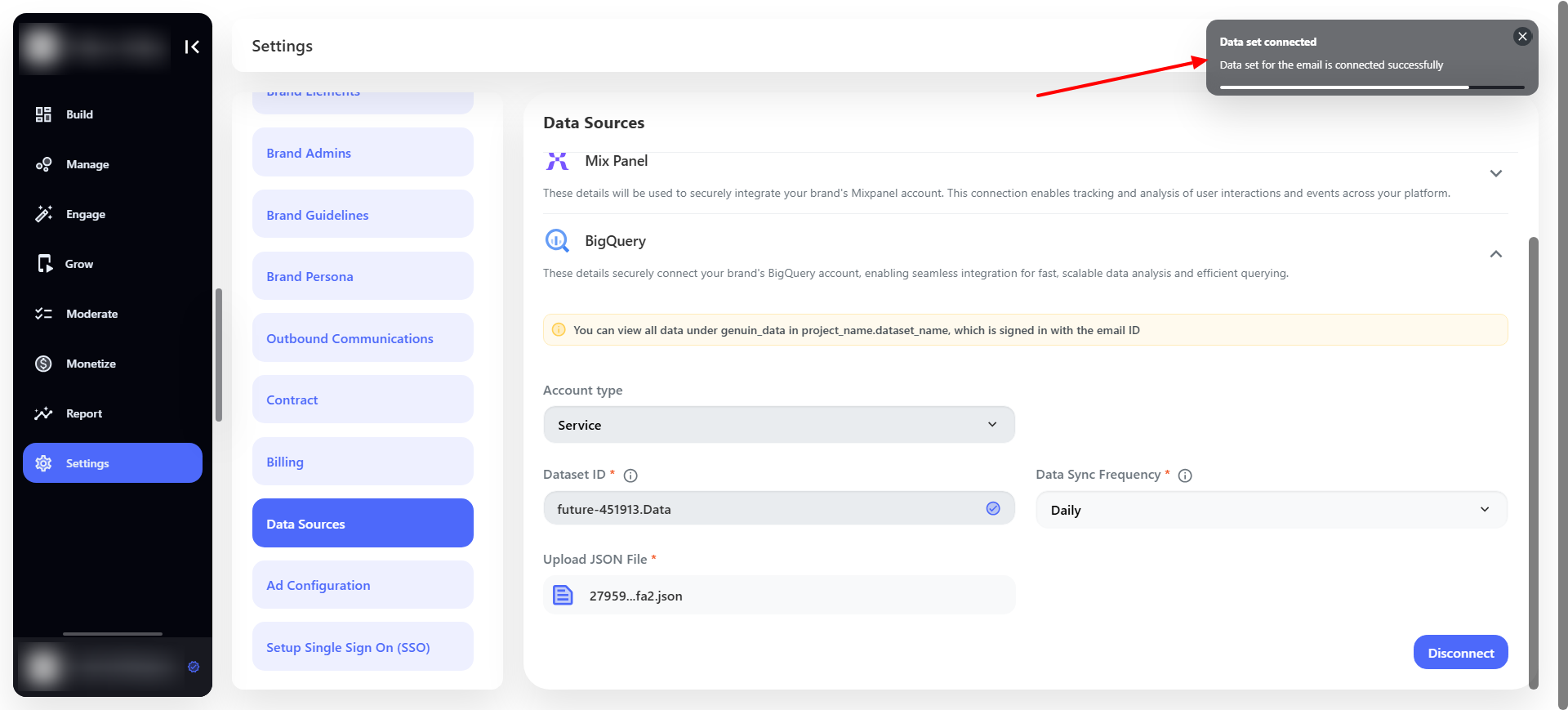
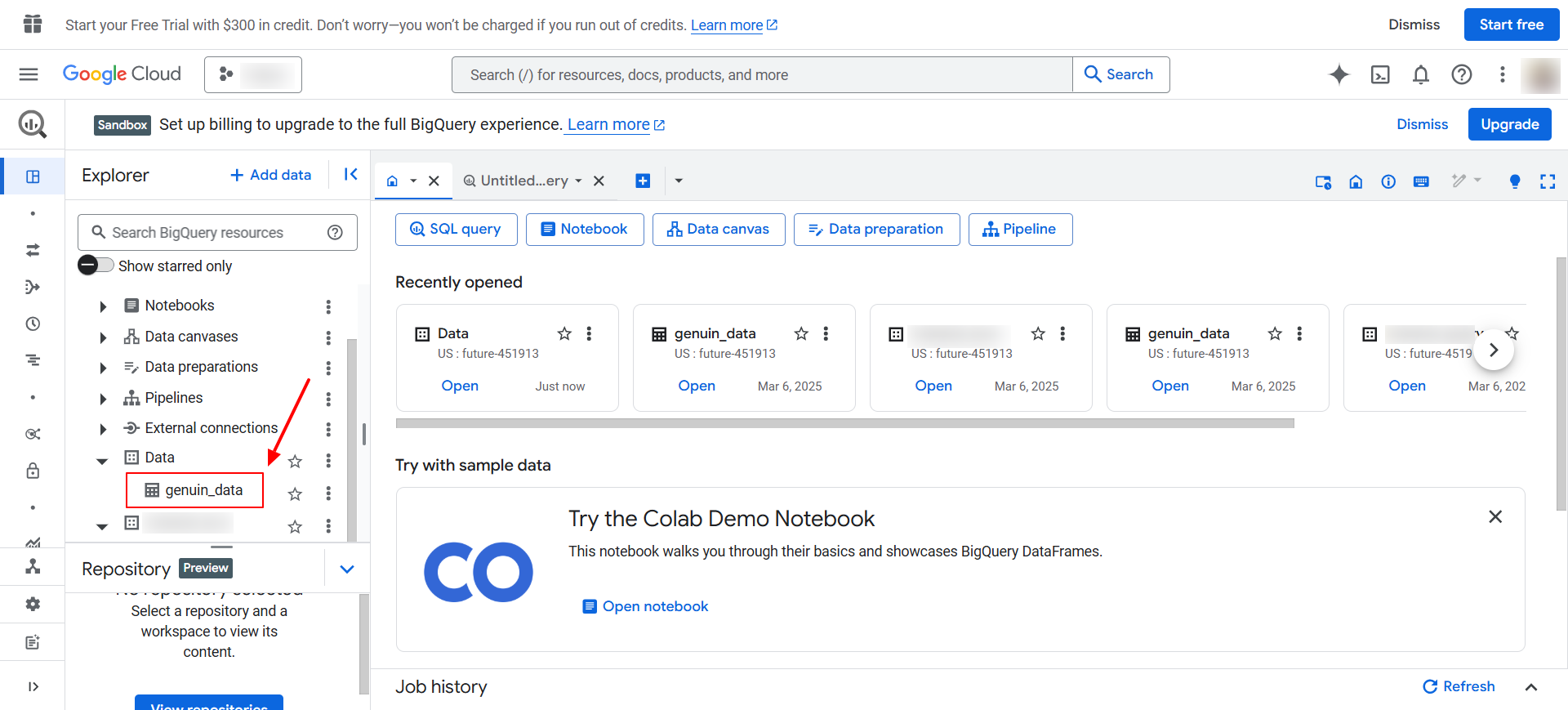
Once the connection is successfully built then a table named “**genuin\_data**” will be created under your dataset.
## Connection
Once the connection is successfully built then a table named “**genuin\_data**” will be created under your dataset.
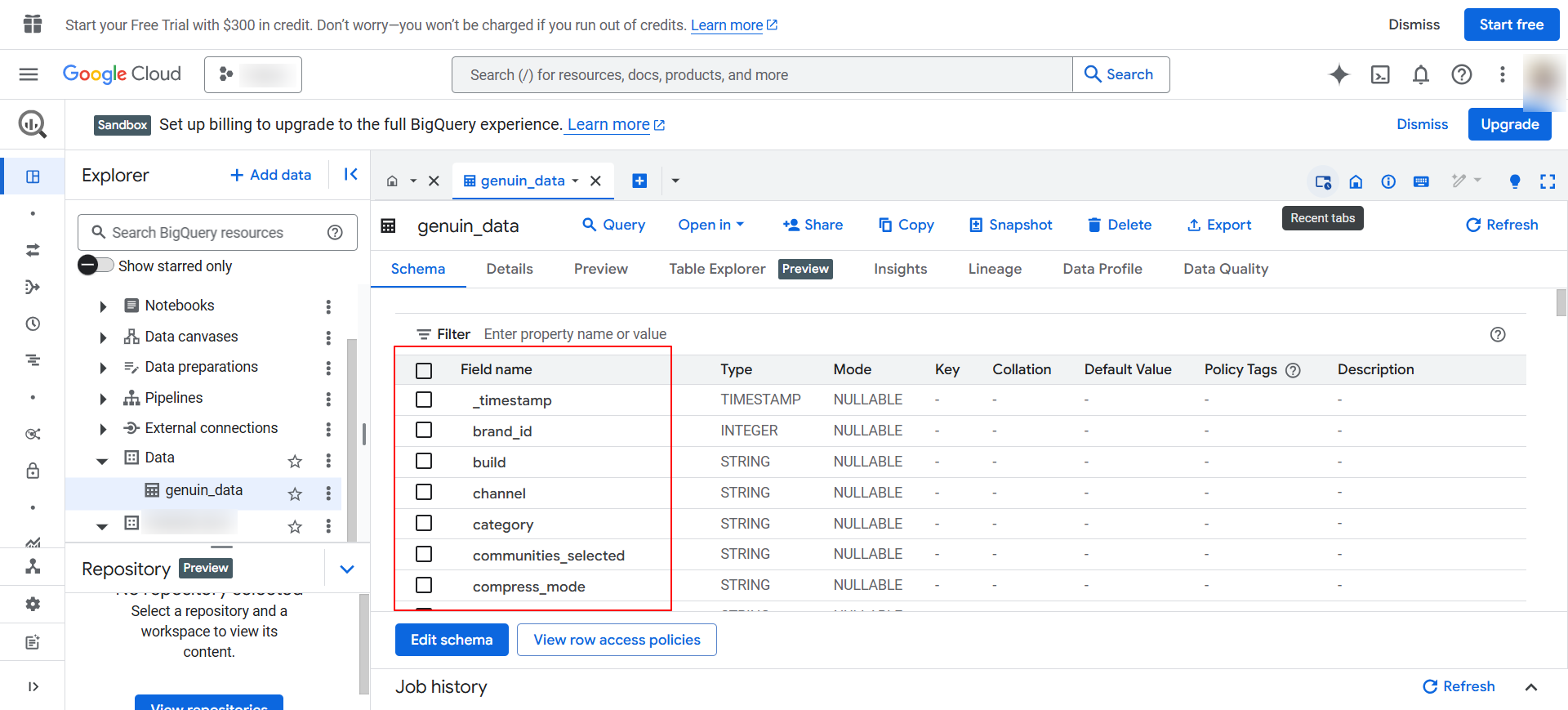
 All of the data will be passed based on the below structure.
 ## Disconnection
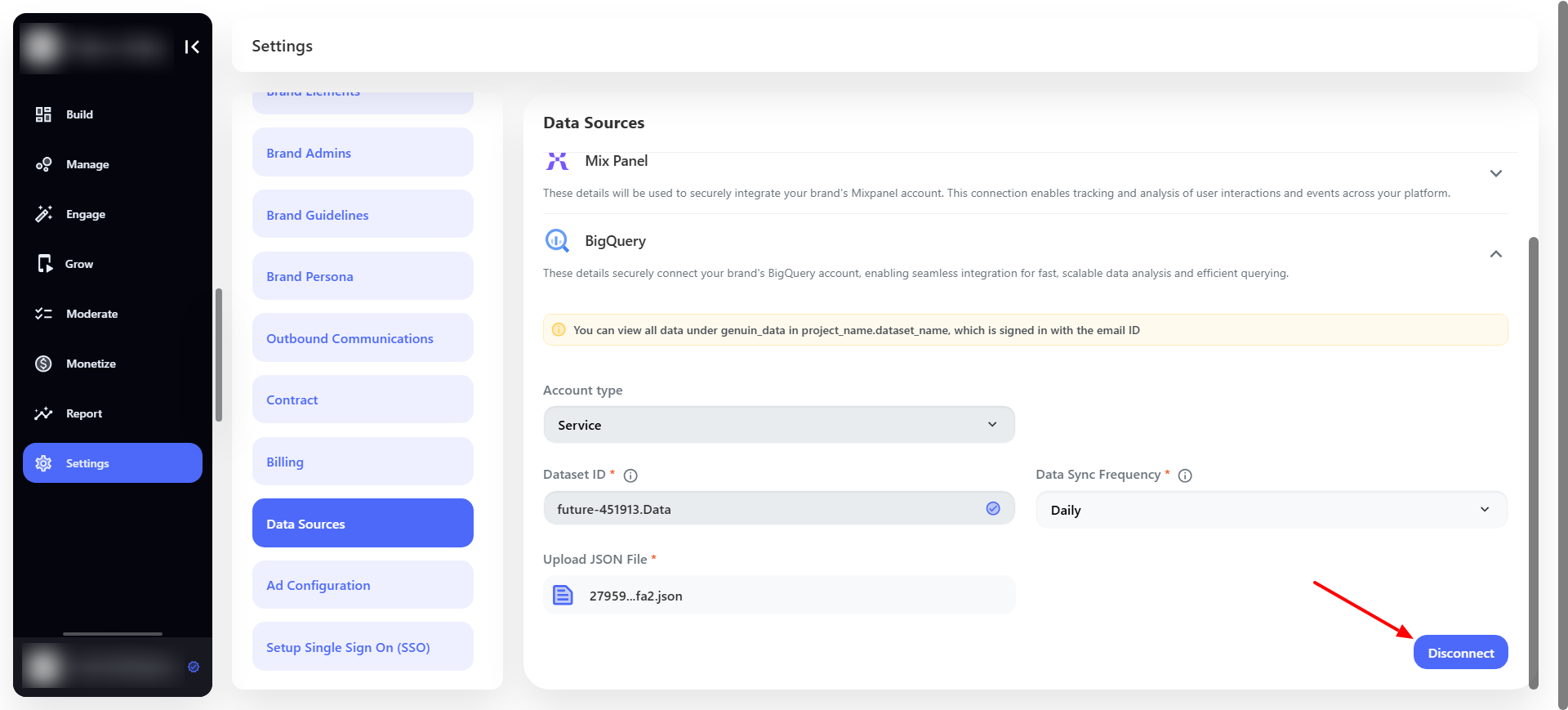
Once the **BigQuery** account is connected then you can also **Disconnect** it.
## Disconnection
Once the **BigQuery** account is connected then you can also **Disconnect** it.
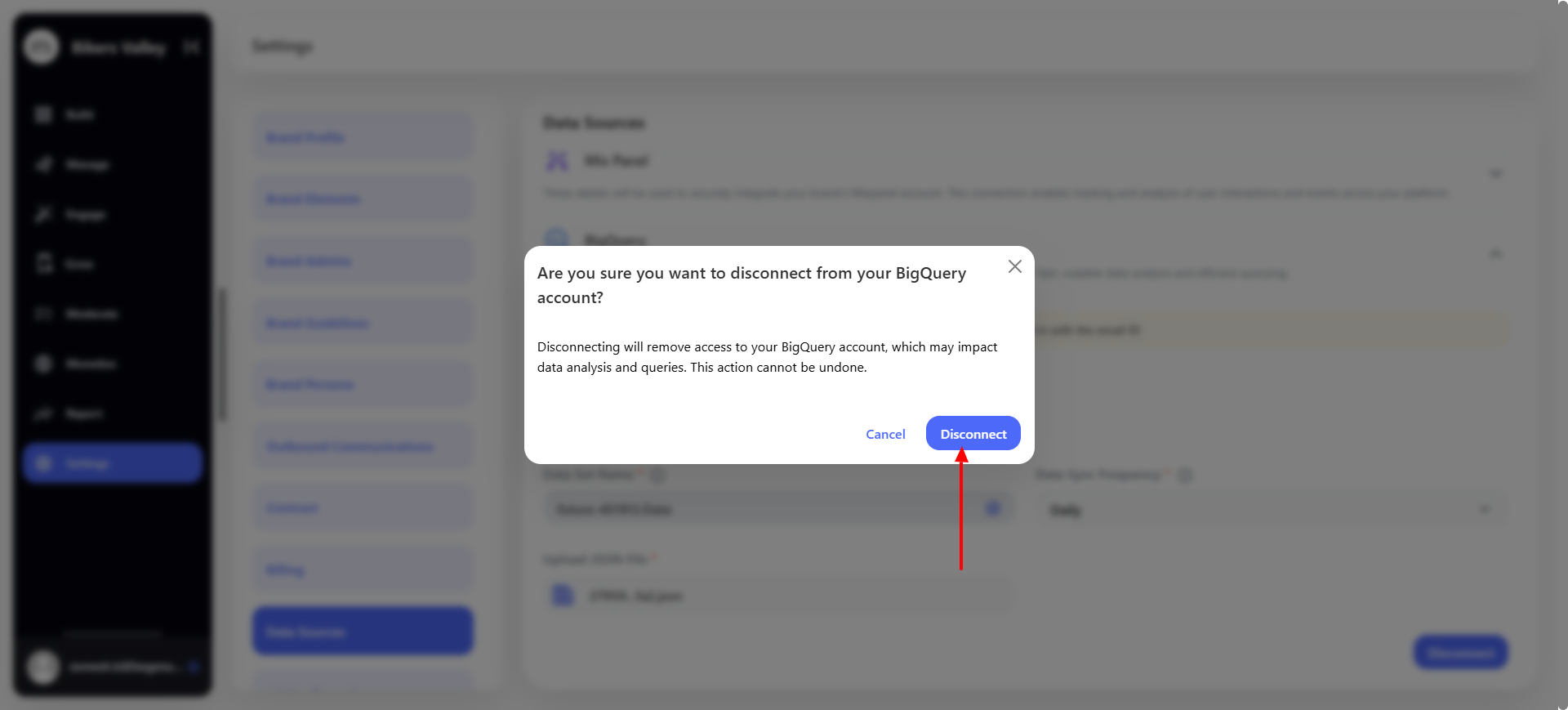
 Confirm the **Disconnection** request as shown in the below screenshot.
 Once the connection is successfully disconnected then a toast message will be visible.
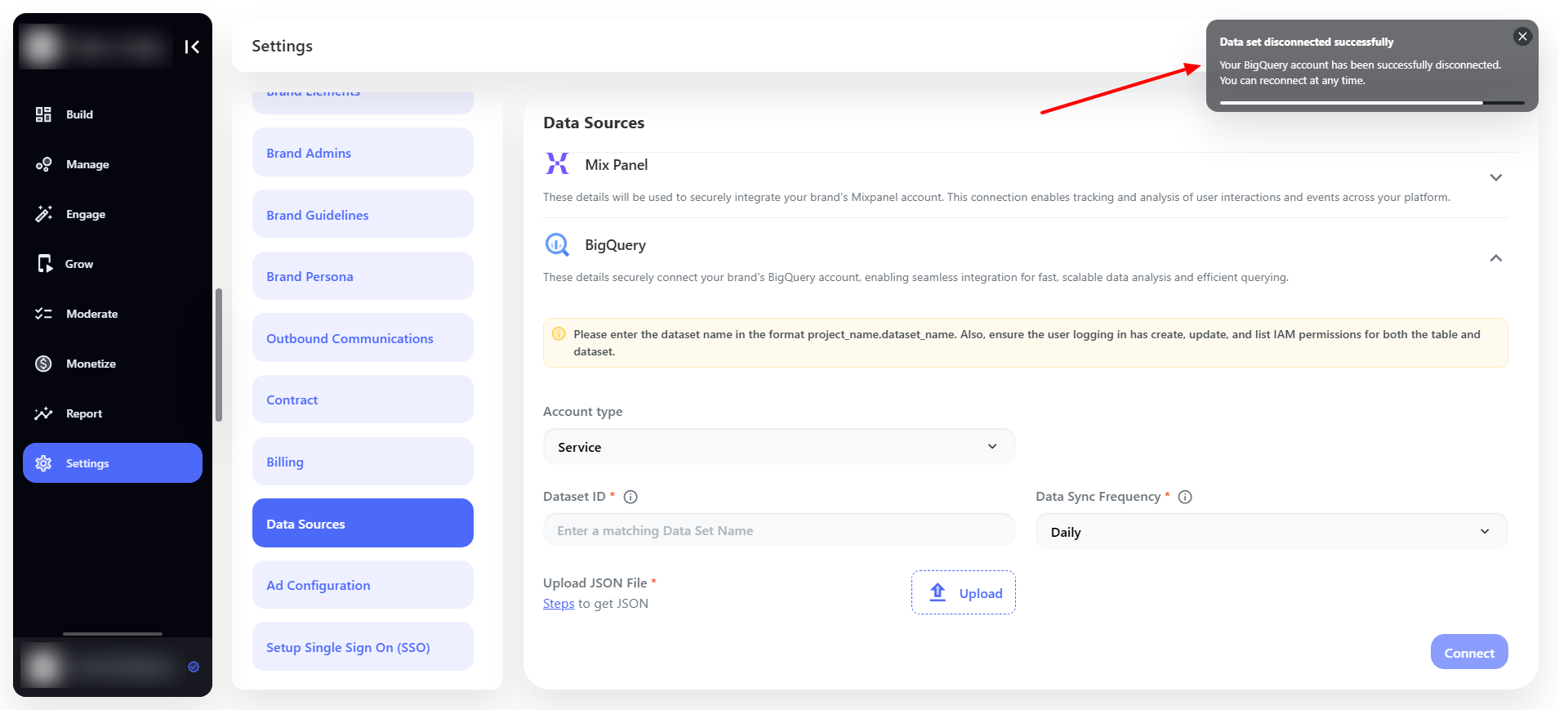 Now the data will not be sent further although the past data will remain the same.