> ## Documentation Index
> Fetch the complete documentation index at: https://resources.begenuin.com/llms.txt
> Use this file to discover all available pages before exploring further.
# Android SDK
> Genuin Android SDK comprises features such as brand feed, communities, and groups.
## Requirements
| Platform | Minimum SDK Version | Language | Supported Orientations | Supported Destinations |
| -------- | ------------------- | ----------- | ---------------------- | ---------------------- |
| Android | 24 | Java/Kotlin | Portrait | Mobile |
## Installation
**Note**: Currently minimum SDK version is 24 but if you want to use our SDK in version below 24, use the below code snippet in the App level manifest file.
```kotlin theme={null}
```
**Warning**: If you use the above code then possible it may lead to the functionality failure in some cases.
**1. Add repo details in project level gradle**
```kotlin Kotlin-settings.gradle.kts theme={null}
dependencyResolutionManagement {
repositoriesMode.set(RepositoriesMode.FAIL_ON_PROJECT_REPOS)
repositories {
google()
mavenCentral()
jcenter()
maven {
setUrl("https://jitpack.io")
}
maven {
setUrl("https://genuin-media.s3.us-east-1.amazonaws.com/android_assets/")
}
}
}
```
```java Groovy-build.gradle theme={null}
allprojects {
repositories {
google()
mavenCentral()
jcenter()
maven {
setUrl("https://jitpack.io")
}
maven {
setUrl("https://genuin-media.s3.us-east-1.amazonaws.com/android_assets/")
}
}
}
```
**2. Add dependency in app level gradle**
```kotlin Kotlin-build.gradle.kts theme={null}
implementation("org.bitbucket.genuindev:genuin_android_sdk:1.1.17.3@aar"){
isTransitive=true
}
```
```java Groovy-build.gradle theme={null}
implementation('org.bitbucket.genuindev:genuin_android_sdk:1.1.17.3@aar') {
transitive = true
}
```
**3. Add permissions to AndroidManifest.xml**
Mandatory Permissions
```kotlin AndroidManifest.xml theme={null}
```
Following permissions are optional and can be added in `AndroidManifest.xml` file as per feature requirements:
* To allow user to **Create Video Content**, **Camera** and **Mic** permissions are needed:
```kotlin AndroidManifest.xml theme={null}
```
* To allow user to **Upload Content** from their gallery
```kotlin AndroidManifest.xml theme={null}
//API level > 32
//API level <= 32
```
* To allow user to add their **Contacts as Members** in **Communities** and **Groups**:
```kotlin AndroidManifest.xml theme={null}
```
* To allow user to receive **Push Notifications**:
```kotlin AndroidManifest.xml theme={null}
```
* To allow creation of **AI Powered Communities** based on the **User Location**:
```kotlin AndroidManifest.xml theme={null}
```
**4. Initialize SDK**
```kotlin YourApplication.kt theme={null}
class YourApplication : Application() {
override fun onCreate() {
// For Prod Environment
GenuinSDK.initSDK(this, "YOUR_API_KEY")
// For QA Environment
GenuinSDK.initSDK(this, "YOUR_API_KEY", genuinEnv = GenuinEnv.QA)
}
}
```
```kotlin YourActivity.kt theme={null}
class YourActivity : AppCompatActivity() {
override fun onCreate(savedInstanceState: Bundle?) {
super.onCreate(savedInstanceState)
// For Prod Environment
GenuinSDK.initSDK(application, "YOUR_API_KEY")
// For QA Environment
GenuinSDK.initSDK(application, "YOUR_API_KEY", genuinEnv = GenuinEnv.QA)
}
}
```
**5. Load SDK in seperate activity**
```kotlin theme={null}
GenuinSDK.loadSDK(context)
```
**6. Load SDK in your custom activity**
Put below code in `activity_custom.xml` file
```Kotlin activity_custom.xml theme={null}
```
Put below code in `CustomActivity.kt` file
```Kotlin CustomActivity.kt theme={null}
import com.begenuin.begenuin.FeedFragment
class CustomActivity : AppCompatActivity() {
override fun onCreate(savedInstanceState: Bundle?) {
super.onCreate(savedInstanceState)
setContentView(R.layout.activity_custom)
val genuinFeedFragment = FeedFragment()
supportFragmentManager.beginTransaction()
.add(R.id.frameLayout, genuinFeedFragment)
.addToBackStack("feedFragment").commit()
}
}
```
**Note**: In your custom activity, set soft input mode to `adjustPan` for better performance
```kotlin AndroidManifest.xml theme={null}
android:windowSoftInputMode="adjustPan"
```
**7. Load SDK with bottom navigation and fragment**
Add below code in `res/navigation/mobile_navigation.xml`
```xml theme={null}
```
Add below code in your activity
```kotlin ViewPager2 theme={null}
override fun onCreate(savedInstanceState: Bundle?) {
super.onCreate(savedInstanceState)
setSupportActionBar(Toolbar(this))
initViewPager()
val navView: BottomNavigationView = binding.navView
navView.setOnItemSelectedListener { item ->
when (item.itemId) {
R.id.navigation_community -> {
binding.viewPager.setCurrentItem(1, false)
true
}
else -> false
}
}
}
private fun initViewPager() {
val myPagerAdapter = MyPagerAdapter(this)
binding.viewPager.adapter = myPagerAdapter
}
class MyPagerAdapter(fragmentActivity: FragmentActivity) :
FragmentStateAdapter(fragmentActivity) {
override fun createFragment(position: Int): Fragment {
return when (position) {
0 -> FeedFragment()
else -> FeedFragment()
}
}
override fun getItemCount(): Int {
return NUM_PAGES
}
companion object {
private const val NUM_PAGES = 1
}
}
```
```kotlin NavHost theme={null}
override fun onCreate(savedInstanceState: Bundle?) {
super.onCreate(savedInstanceState)
setSupportActionBar(Toolbar(this))
val navView: BottomNavigationView = binding.navView
val navController =
findNavController(R.id.nav_host_fragment_activity_bottom_tab_with_nav_host)
// Passing each menu ID as a set of Ids because each
// menu should be considered as top level destinations.
val appBarConfiguration = AppBarConfiguration(
setOf(
R.id.navigation_community
)
)
setupActionBarWithNavController(navController, appBarConfiguration)
navView.setupWithNavController(navController)
}
```
**8. Want to override our default loader.**
We are using lottie animation for our loader. You can put your custom lottie animation loader with the name `loader_mix.json` in the `res/raw` folder. Make sure you use the same name as provided.
**Note**: In AndroidManifest.xml, in the `` tag, set `android:allowBackup="false"`
## Monetization
* To enable the **Monetization** add the below code:
```kotlin AndroidManifest.xml theme={null}
```
**Need to declare in Google play console that your app is using Advertising ID**
Steps:
* **Log in** to your Google Play Console.
* **Select the app** you are working on.
* Go to **Policy** and **programs > App content**.
* Find the **Advertising ID** section and click on **Manage**.
* Select "**yes**" that your app is using Advertising ID
* After answering the questions, submit your declaration.
## Embed
**Note**: Make sure you have followed the [First 3 installation steps](https://resources.begenuin.com/developers/sdk-docs/android_sdk#installation) in order to implement the Carousel Embed
### Carousel Embed
Refer to [Carousel View](https://resources.begenuin.com/developers/guides/embed#mobile-view) in mobile.
**1. Load Carousel Embed with XML**
```xml activity_embed.xml theme={null}
```
**Note**: Carousel Container height must be fixed or match\_parent. It can not be wrap\_content else carousel embed will not appear.
```kotlin EmbedActivity.kt (With SSO) theme={null}
//This is Optional
val params = HashMap()
params["name"] = "John Doe"
params["email"] = "john.doe@begenuin.com"
params["nickname"] = "john"
params["mobile"] = "1XXXXXXXXXX"
//This is Optional
val contextualParams = HashMap()
contextualParams["page_context"] = pageContext
val geoJson = JSONObject()
geoJson.put("lat", XXXX.XXX)
geoJson.put("long", XXXX.XXX)
contextualParams["geo"] = geoJson.toString()
carouselEmbedView.apply {
setEmbedParams(
embedId = "YOUR_EMBED_ID",
uniqueId="UNIQUE_ID",
interactionDeepLink = "YOUR_DEEPLINK",
isDirectDeepLinkEnabled = false,
isShowProfileEnabled = false
)
setActivity(activityContext)
setSSOToken("YOUR_SSO_TOKEN")
setParams(params) // User specific params
setAspectRatio(CarouselTileAspectRatio.RATIO_4_5)
setInterTileSpacing(24) // values should be in pixels
setInsets(
left = 24, // values should be in pixels
top = 24, // values should be in pixels
right = 24, // values should be in pixels
bottom = 24, // values should be in pixels
)
setTileCornerRadius(24) // values should be in pixels
setContextualParams(contextualParams) // Contextual params
load()
}
```
```kotlin EmbedActivity.kt (Without SSO) theme={null}
//This is Optional
val contextualParams = HashMap()
contextualParams["page_context"] = pageContext
val geoJson = JSONObject()
geoJson.put("lat", XXXX.XXX)
geoJson.put("long", XXXX.XXX)
contextualParams["geo"] = geoJson.toString()
carouselEmbedView.apply {
setEmbedParams(
embedId = "YOUR_EMBED_ID",
uniqueId="UNIQUE_ID",
interactionDeepLink = "YOUR_DEEPLINK",
isDirectDeepLinkEnabled = false,
isShowProfileEnabled = false
)
setActivity(activityContext)
setAspectRatio(CarouselTileAspectRatio.RATIO_4_5)
setInterTileSpacing(24) // values should be in pixels
setInsets(
left = 24, // values should be in pixels
top = 24, // values should be in pixels
right = 24, // values should be in pixels
bottom = 24, // values should be in pixels
)
setTileCornerRadius(24) // values should be in pixels
setContextualParams(contextualParams) // Contextual params
load()
}
```
**2. Load Carousel Embed Programmatically**
```xml activity_embed.xml theme={null}
```
**Note**: Carousel Container height must be fixed or match\_parent. It can not be wrap\_content else carousel embed will not appear.
```kotlin EmbedActivity.kt (With SSO) theme={null}
val carouselEmbedView = CarouselEmbedView(context)
llCarouselContainer.addView(carouselEmbedView)
//This is Optional
val params = HashMap()
params["name"] = "John Doe"
params["email"] = "john.doe@begenuin.com"
params["nickname"] = "john"
params["mobile"] = "1XXXXXXXXXX"
//This is Optional
val contextualParams = HashMap()
contextualParams["page_context"] = pageContext
val geoJson = JSONObject()
geoJson.put("lat", XXXX.XXX)
geoJson.put("long", XXXX.XXX)
contextualParams["geo"] = geoJson.toString()
carouselEmbedView.apply {
setEmbedParams(
embedId = "YOUR_EMBED_ID",
uniqueId="UNIQUE_ID",
interactionDeepLink = "YOUR_DEEPLINK",
isDirectDeepLinkEnabled = false,
isShowProfileEnabled = false
)
setActivity(activityContext)
setAspectRatio(CarouselTileAspectRatio.RATIO_4_5)
setInterTileSpacing(24) // values should be in pixels
setInsets(
left = 24, // values should be in pixels
top = 24, // values should be in pixels
right = 24, // values should be in pixels
bottom = 24, // values should be in pixels
)
setTileCornerRadius(24) // values should be in pixels
setSSOToken("YOUR_SSO_TOKEN")
setParams(params) // User specific params
setContextualParams(contextualParams) // Contextual params
load()
}
```
```kotlin EmbedActivity.kt (Without SSO) theme={null}
//This is Optional
val contextualParams = HashMap()
contextualParams["page_context"] = pageContext
val geoJson = JSONObject()
geoJson.put("lat", XXXX.XXX)
geoJson.put("long", XXXX.XXX)
contextualParams["geo"] = geoJson.toString()
val carouselEmbedView = CarouselEmbedView(context)
llCarouselContainer.addView(carouselEmbedView)
carouselEmbedView.apply {
setEmbedParams(
embedId = "YOUR_EMBED_ID",
uniqueId="UNIQUE_ID",
interactionDeepLink = "YOUR_DEEPLINK",
isDirectDeepLinkEnabled = false,
isShowProfileEnabled = false
)
setActivity(activityContext)
setAspectRatio(CarouselTileAspectRatio.RATIO_4_5)
setInterTileSpacing(24) // values should be in pixels
setInsets(
left = 24, // values should be in pixels
top = 24, // values should be in pixels
right = 24, // values should be in pixels
bottom = 24, // values should be in pixels
)
setTileCornerRadius(24) // values should be in pixels
setContextualParams(contextualParams) // Contextual params
load()
}
```
#### Vertical Carousel Embed
To implement vertical carousel, you can use `setScrollDirection(CarouselScrollDirection.VERTICAL)` and other configurations will be same as above.
```kotlin VerticalEmbedActivity.kt theme={null}
// Example Code Snippet
carouselEmbedView.apply {
setEmbedParams(
embedId = "YOUR_EMBED_ID",
uniqueId="UNIQUE_ID",
)
setActivity(activityContext)
setScrollDirection(CarouselScrollDirection.VERTICAL)
setAspectRatio(CarouselTileAspectRatio.RATIO_4_5)
load()
}
```
**Note**: To initialise the Embed you need to add your activity context `(setActivity(activityContext))` in which you want the embed. To auto login in the SDK, you shall pass "YOUR\_SSO\_TOKEN"`(setSSOToken("YOUR_SSO_TOKEN"))` in order to implement Embed with SSO in your app.
To configure the `EmbedParams` based on your need you can pass the below values.
1. **embedId** = The Embed Id that you want to load.
2. **uniqueId** = This is an optional parameter. This uniqueId is used when we need to display same embed in multiple/same screen. We need to provide uniqueId for the same embedId in multiple/same screen.
3. **interactionDeepLink** = This is an optional parameter. You can pass a deeplink URL in this parameter. If a deeplink URL is given then all the interaction/clicks in the full screen view will redirect to the deeplink URL given. If not passed then the regular flow will work. It should be a correct URL else user will not be redirected.
4. **isDirectDeepLinkEnabled** = This is an optional boolean parameter. Default value is false. If this parameter is true then all the interaction/clicks in the full screen view will redirect to the specific video in white labelled app associated with video and also value of this parameter "**interactionDeepLink**" will be ignored. If not passed then the regular flow will work.
**Note**: For using `isDirectDeepLinkEnabled` parameter, you must have [white labelled your domain](https://resources.begenuin.com/retail-media/build/how_to_white-label_your_community) first and also integrated the [Handling deep link](https://resources.begenuin.com/developers/sdk-docs/android_sdk#handling-deep-link) part in your main app in which you want to redirect this video to.
5. **isShowProfileEnabled** = This is an optional boolean parameter. Default value is false. If this parameter is true and also if user is logged in than Profile picture will be visible in full screen view (right side top corner). On clicking the profile picture user will see the account settings and logout options.
**Add user specific parameters (Optional)**
a. **name** - This is an optional string parameter. Pass this parameter for `signup/login`.
b. **mobile** - This is an optional string parameter. Pass this parameter for `signup/login`.
c. **email** - This is an optional string parameter. Pass this parameter for `signup/login`.
d. **nickname** - This is an optional string parameter. If nickname is available in genuin ecosystem it will be used, else genuin will generate of its own.
e. **profile\_image**: This is an optional string parameter. Pass the `profile_image` parameter if you want to show the profile image in the SDK.
**Add contextual parameters (Optional)**
a. **page\_context** - This is an optional string parameter. Pass this parameter for '`context`', so that feed could load based on that context.
b. **lat** - This is an optional float parameter. Pass this parameter in `geo` so that the feed could load based on the latitude and context.
c. **long** - This is an optional float parameter. Pass this parameter in `geo` so that the feed could load based on the longitude and context.
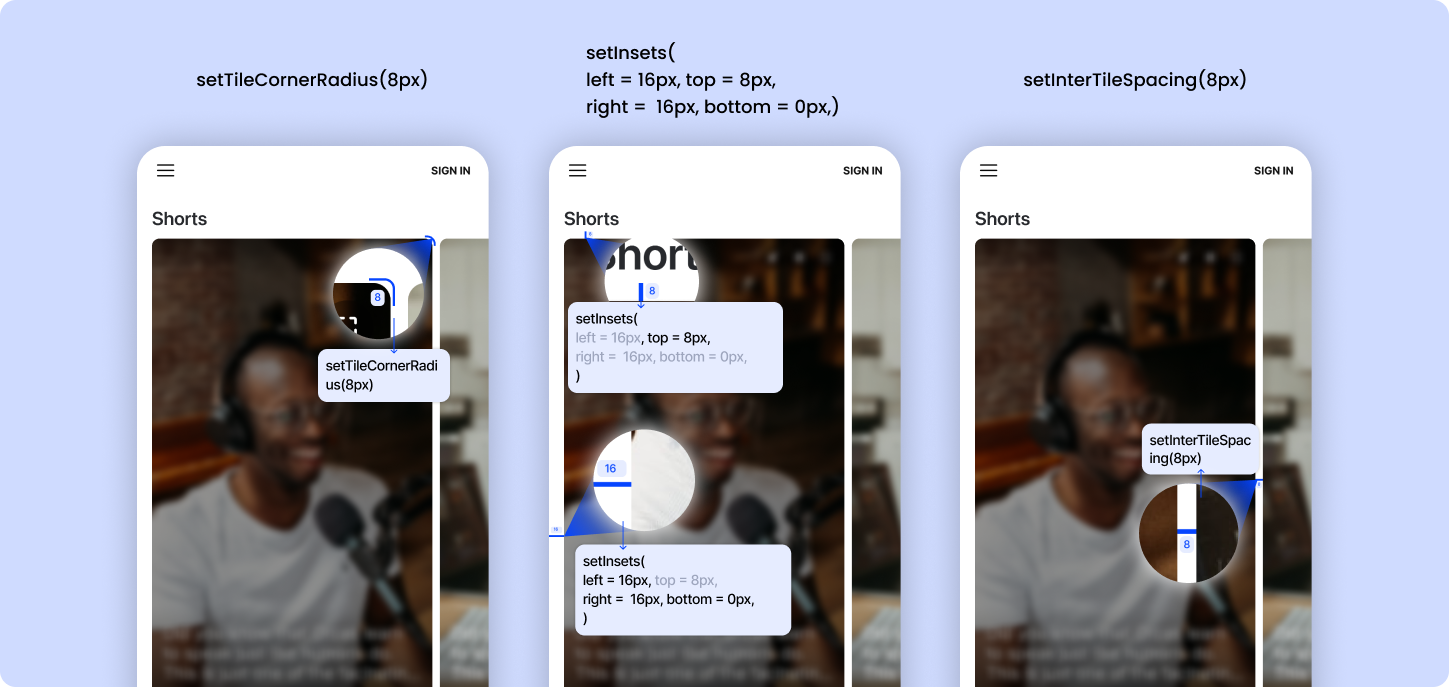
**Add design configurations (Optional)**
a. **interTileSpacing** - spacing between the carousel's view items. It's default value is `8dp`
b. **carouselInset** - edge insets for carousel's view. It's default value is `top: 8dp, left: 16dp, bottom: 0dp, right: 16dp`
c. **scrollDirection** - direction of carousel scroll. It's default value is `CarouselScrollDirection.HORIZONTAL`
d. **aspectRatio** - define aspect ratio of carousel's view items. It's default value is `CarouselTileAspectRatio.RATIO_9_16`
e. **tileCornerRadius** - cornerRadius for the carousel's view items. It's default value is `8dp`
 **3. Manage carousel videos auto-play**
```kotlin EmbedActivity.kt theme={null}
override fun onResume() {
super.onResume()
carouselEmbedView.resumeVideoAutoPlay()
}
override fun onPause() {
carouselEmbedView.pauseVideoAutoPlay()
super.onPause()
}
```
### Full Screen Embed
Put below code in `activity_full_embed.xml` file
```Kotlin activity_full_embed.xml theme={null}
```
Put below code in `FullEmbedActivity.kt` file
```Kotlin FullEmbedActivity.kt theme={null}
import com.begenuin.sdk.ui.fragment.FeedEmbedFragment
class FullEmbedActivity : AppCompatActivity() {
override fun onCreate(savedInstanceState: Bundle?) {
super.onCreate(savedInstanceState)
setContentView(R.layout.activity_full_embed)
//This is Optional
val params = HashMap()
params["name"] = "John Doe"
params["email"] = "john.doe@begenuin.com"
params["nickname"] = "john"
params["mobile"] = "1XXXXXXXXXX"
//This is Optional
val contextualParams = HashMap()
contextualParams["page_context"] = pageContext
val geoJson = JSONObject()
geoJson.put("lat", XXXX.XXX)
geoJson.put("long", XXXX.XXX)
contextualParams["geo"] = geoJson.toString()
val feedEmbedFragment = FeedEmbedFragment.newInstance(
embedId = "YOUR_EMBED_ID",
uniqueId="UNIQUE_ID",
interactionDeepLink = "YOUR_DEEPLINK",
isDirectDeepLinkEnabled = false,
isShowProfileEnabled = false,
ssoToken = "YOUR_SSO_TOKEN",
params = params // User specific params,
contextualParams = contextualParams
)
feedEmbedFragment.let {
supportFragmentManager.beginTransaction()
.add(R.id.frameLayout, it)
.addToBackStack("EmbedFullFeed").commit()
}
}
}
```
We need to pass below arguments in order to cofigure `FullScreenEmbed`.
1. **embedId** = The Embed Id that you want to load.
2. **uniqueId** = This is an optional parameter. This uniqueId is used when we need to display same embed in multiple/same screen. We need to provide uniqueId for the same embedId in multiple/same screen.
3. **interactionDeepLink** = This is an optional parameter. You can pass a deeplink URL in this parameter. If a deeplink URL is given then all the interaction/clicks in the full screen view will redirect to the deeplink URL given. If not passed then the regular flow will work. It should be a correct URL else user will not be redirected.
4. **isDirectDeepLinkEnabled** = This is an optional boolean parameter. Default value is false. If this parameter is true then all the interaction/clicks in the full screen view will redirect to the specific video in white labelled app associated with video and also value of this parameter "**interactionDeepLink**" will be ignored. If not passed then the regular flow will work.
**Note**: For using `isDirectDeepLinkEnabled` parameter, you must have [white labelled your domain](https://resources.begenuin.com/retail-media/build/how_to_white-label_your_community) first and also integrated the [Handling deep link](https://resources.begenuin.com/developers/sdk-docs/android_sdk#handling-deep-link) part in your main app in which you want to redirect this video to.
5. **isShowProfileEnabled** = This is an optional boolean parameter. Default value is false. If this parameter is true and also if user is logged in than Profile picture will be visible in full screen view (right side top corner). On clicking the profile picture user will see the account settings and logout options.
6. **ssoToken**: This is an optional parameter. To auto login in the SDK, you shall pass "YOUR\_SSO\_TOKEN" in order to implement Embed with SSO in your app.
**Add user specific parameters (Optional)**
a. **name** - This is an optional string parameter. Pass this parameter for `signup/login`.
b. **mobile** - This is an optional string parameter. Pass this parameter for `signup/login`.
c. **email** - This is an optional string parameter. Pass this parameter for `signup/login`.
d. **nickname** - This is an optional string parameter. If nickname is available in genuin ecosystem it will be used, else genuin will generate of its own.
e. **profile\_image**: This is an optional string parameter. Pass the `profile_image` parameter if you want to show the profile image in the SDK.
**Add contextual parameters (Optional)**
a. **page\_context** - This is an optional string parameter. Pass this parameter for '`context`', so that feed could load based on that context.
b. **lat** - This is an optional float parameter. Pass this parameter in `geo` so that the feed could load based on the latitude and context.
c. **long** - This is an optional float parameter. Pass this parameter in `geo` so that the feed could load based on the longitude and context.
### Standard Wall Embed
Put below code in `activity_standard_wall_embed.xml` file
```Kotlin activity_standard_wall_embed.xml theme={null}
```
Put below code in `StandardWallEmbedActivity.kt` file
```Kotlin StandardWallEmbedActivity.kt theme={null}
import com.begenuin.sdk.ui.fragment.FeedEmbedFragment
class StandardWallEmbedActivity : AppCompatActivity() {
override fun onCreate(savedInstanceState: Bundle?) {
super.onCreate(savedInstanceState)
setContentView(R.layout.activity_standard_wall_embed)
//This is Optional
val params = HashMap()
params["name"] = "John Doe"
params["email"] = "john.doe@begenuin.com"
params["nickname"] = "john"
params["mobile"] = "1XXXXXXXXXX"
//This is Optional
val contextualParams = HashMap()
contextualParams["page_context"] = pageContext
val geoJson = JSONObject()
geoJson.put("lat", XXXX.XXX)
geoJson.put("long", XXXX.XXX)
contextualParams["geo"] = geoJson.toString()
val feedEmbedFragment = FeedEmbedFragment.newInstance(
embedId = "YOUR_EMBED_ID",
uniqueId="UNIQUE_ID",
interactionDeepLink = "YOUR_DEEPLINK",
isDirectDeepLinkEnabled = false,
isShowProfileEnabled = false,
ssoToken = "YOUR_SSO_TOKEN",
params = params, // User specific params
contextualParams = contextualParams // Contextual params
)
feedEmbedFragment.let {
supportFragmentManager.beginTransaction()
.add(R.id.frameLayout, it)
.addToBackStack("EmbedStandardWallFeed").commit()
}
}
}
```
We need to pass below arguments in order to cofigure `StandardWallEmbed`.
1. **embedId** = The Embed Id that you want to load.
2. **uniqueId** = This is an optional parameter. This uniqueId is used when we need to display same embed in multiple/same screen. We need to provide uniqueId for the same embedId in multiple/same screen.
3. **isShowProfileEnabled** = This is an optional boolean parameter. Default value is false. If this parameter is true and also if user is logged in than Profile picture will be visible in full screen view (right side top corner). On clicking the profile picture user will see the account settings and logout options.
4. **isDirectDeepLinkEnabled** = This is an optional boolean parameter. Default value is false. If this parameter is true then all the interaction/clicks in the full screen view will redirect to the specific video in white labelled app associated with video and also value of this parameter "**interactionDeepLink**" will be ignored. If not passed then the regular flow will work.
**Note**: For using `isDirectDeepLinkEnabled` parameter, you must have [white labelled your domain](https://resources.begenuin.com/retail-media/build/how_to_white-label_your_community) first and also integrated the [Handling deep link](https://resources.begenuin.com/developers/sdk-docs/android_sdk#handling-deep-link) part in your main app in which you want to redirect this video to.
5. **isShowProfileEnabled** = This is an optional boolean parameter. Default value is false. If this parameter is true and also if user is logged in than Profile picture will be visible in full screen view (right side top corner). On clicking the profile picture user will see the account settings and logout options.
6. **ssoToken**: This is an optional parameter. To auto login in the SDK, you shall pass "YOUR\_SSO\_TOKEN" in order to implement Embed with SSO in your app.
**Add user specific parameters (Optional)**
a. **name** - This is an optional string parameter. Pass this parameter for `signup/login`.
b. **mobile** - This is an optional string parameter. Pass this parameter for `signup/login`.
c. **email** - This is an optional string parameter. Pass this parameter for `signup/login`.
d. **nickname** - This is an optional string parameter. If nickname is available in genuin ecosystem it will be used, else genuin will generate of its own.
e. **profile\_image**: This is an optional string parameter. Pass the `profile_image` parameter if you want to show the profile image in the SDK.
**Add contextual parameters (Optional)**
a. **page\_context** - This is an optional string parameter. Pass this parameter for '`context`', so that feed could load based on that context.
b. **lat** - This is an optional float parameter. Pass this parameter in `geo` so that the feed could load based on the latitude and context.
c. **long** - This is an optional float parameter. Pass this parameter in `geo` so that the feed could load based on the longitude and context.
## Handle Login : via AutoLogin Approach
To Auto Login in the SDK, You need to call below method, whenever user is log in to your application.
**Note**: You don't need to call the below method if you have implemented the Embed With SSO already.
```kotlin YourClass.kt theme={null}
GenuinSDK.ssoLogin(context = "YOUR_CONTEXT", ssoToken = "YOUR_SSO_TOKEN")
```
### Optional Parameters
Below are the optional parameters you can add with the function:
```kotlin YourActivity.kt theme={null}
val params = HashMap()
params["name"] = "John Doe"
params["email"] = "john.doe@begenuin.com"
params["nickname"] = "john"
params["mobile"] = "1XXXXXXXXXX"
GenuinSDK.ssoLogin(
context = "YOUR_CONTEXT",
ssoToken = "YOUR_SSO_TOKEN",
params = params //This is optional
)
```
**Add user specific parameters (Optional)**
1. **name** - This is an optional string parameter. Pass this parameter for '`signup/login`'.
2. **mobile** - This is an optional string parameter. Pass this parameter for `signup/login`.
3. **email** - This is an optional string parameter. Pass this parameter for `signup/login`.
4. **nickname** - This is an optional string parameter. If nickname is available in genuin ecosystem it will be used, else genuin will generate of its own.
5. **profile\_image**: This is an optional string parameter. Pass the `profile_image` parameter if you want to show the profile image in the SDK.
### Optional Callback
```kotlin YourClass.kt theme={null}
GenuinSDK.ssoLogin(
context = "YOUR_CONTEXT",
ssoToken = "YOUR_SSO_TOKEN",
params = "YOUR_OPTIONAL_PARAMS",
onComplete = {
isSuccess: Boolean ->
//Manage callback for Login Completion
}
)
```
```kotlin YourClass.java theme={null}
GenuinSDK.INSTANCE.ssoLogin(
"CONTEXT",
"SSO-TOKEN",
"OPTIONAL-PARAMETERS",
(isSuccess) -> {
//Manage callback for Login Completion
return Unit.INSTANCE;
}
);
```
## Custom Login
If you want to handle login process as per your requirement then follow the below steps:
```kotlin YourActivity.kt theme={null}
GenuinSDK.registerInterface(object : GenuinInterface {
override fun onLogin(context: Activity) {
/*
This callback will be triggered when user attempts to login
within one of the Genuin embeds. Application login process
should be initiated here.
When your application's auth process is successfully completed,
call GenuinSDK.ssoLogin(context, "ssoToken") to automatically
manage SDK login.
*/
}
})
```
## Handle Logout : via AutoLogin Approach
Whenever user logs out from your application call the below method.
GenuinSDK.ssoLogout(context = "YOUR\_CONTEXT")
### Optional Callback
```kotlin YourClass.kt theme={null}
GenuinSDK.ssoLogout(
context = "YOUR_CONTEXT",
onComplete = {
isSuccess: Boolean ->
//Manage callback for Logout Completion
}
)
```
```kotlin YourClass.java theme={null}
GenuinSDK.INSTANCE.ssoLogout(
"CONTEXT",
(isSuccess) -> {
//Manage callback for Logout Completion
return Unit.INSTANCE;
}
);
```
## Handling Deep Link
**Note**: Make sure you have followed the [First 3 installation steps](https://resources.begenuin.com/developers/sdk-docs/android_sdk#installation) in order to handle the deep link.
**Prerequisite**:
1. Make sure you have white labelled your community by following these [steps](https://resources.begenuin.com/retail-media/build/how_to_white-label_your_community).
2. Follow the steps given in the below URL to integrate deeplink in your app
[https://developer.android.com/studio/write/app-link-indexing](https://developer.android.com/studio/write/app-link-indexing)
**Note** : Here host will be your "YOUR\_WHITE-LABELLED\_DOMAIN"
3. After completing deeplink setup, your `assetlinks.json` file should look like below
```kotlin assetlinks.json theme={null}
[{"target":{"package_name":"YOUR_PACKAGE_NAME","sha256_cert_fingerprints":["YOUR_KEYSTORE'S_SHA256_FINGERPRINTS"],"namespace":"android_app"},"relation":["delegate_permission/common.handle_all_urls"]}]
```
4. Host `assetlinks.json` file on the white labeled domain at `https://YOUR_WHITE-LABELLED_DOMAIN/.well-known/assetlinks.json`
**To Handle Our Deep Link In Your App**
You can call the below method immediately after receiving deeplink or you can wait until your app's home screen is loaded.
```kotlin YourCustomActivity.kt theme={null}
GenuinSDK.handleDeepLink(context = "YOUR_CONTEXT", intent = "YOUR_DEEPLINK_ACTIVITY_INTNET")
```
**Note**: Need to call this function everytime your app receives any deeplink. This method will handle deeplink if it is our's otherwise it will ignore that.
## Handling Push Notifications
**Note**: Make sure you have followed the [First 3 installation steps](https://resources.begenuin.com/developers/sdk-docs/android_sdk#installation) in order to handle the push notifications.
**Prerequisite:**
1. Create an app in your firebase using [these steps](https://firebase.google.com/docs/android/setup)
2. Download the `google-services.json` file and add it into your app.
3. Integrate firebase into your app by following [these steps](https://firebase.google.com/docs/cloud-messaging/android/client)
**Get firebase token and register it with Genuin SDK**
```kotlin theme={null}
private fun getFirebaseToken(){
FirebaseMessaging.getInstance().token
.addOnCompleteListener { task: Task ->
if (!task.isSuccessful) {
return@addOnCompleteListener
}
// Get new FCM registration token
val token = task.result
// Register token with Genuin SDK
GenuinSDK.registerFCMToken("YOUR_CONTEXT", token)
}
}
```
**Handle foreground notifications (When your app is in foreground)**
```kotlin MyFirebaseMessagingService.kt theme={null}
class MyFirebaseMessagingService : FirebaseMessagingService() {
override fun onMessageReceived(remoteMessage: RemoteMessage) {
super.onMessageReceived(remoteMessage)
val data: Map = remoteMessage.getData()
if (GenuinSDK.willHandleForegroundNotification(data)) {
val message = remoteMessage.notification?.body ?: ""
GenuinSDK.handleForegroundNotifications(
context = this,
data = data,
message = message,
smallNotificationIcon = R.drawable.ic_small_notifications // Your app's notification small icon
)
} else {
// Handle other push notifications for your app
}
}
/**
* There are two scenarios when onNewToken is called:
* 1) When a new token is generated on initial app startup
* 2) Whenever an existing token is changed
* Under #2, there are three scenarios when the existing token is changed:
* A) App is restored to a new device
* B) User uninstalls/reinstall the app
* C) User clears app data
*/
override fun onNewToken(s: String) {
super.onNewToken(s)
GenuinSDK.registerFCMToken(this, s)
}
}
```
**Note**: `GenuinSDK.willHandleForegroundNotification(data: Map)` function will check whether GenuinSDK will handle the given notification or not when app is in foreground.
**Handle notifications while app is running in background or closed**
* Whenever user clicks on notifications, you will get the notification payload in your launcher activity.
```kotlin YourLauncherActivity.kt theme={null}
if (GenuinSDK.willHandleNotification(intent)) {
GenuinSDK.handleBackgroundNotifications(context = "YOUR_CONTEXT", intent)
}
```
**Note**: `GenuinSDK.willHandleNotification(intent: Intent)` function will check whether GenuinSDK will handle the given notification or not.
## What’s next?
Integrate iOS SDK in Your ecosystem.
Integrate Web SDK in your ecosystem.
Integrate React Native SDK in your ecosystem.
## Support
If you need any assistance or have any questions, feel free to email us at [support@begenuin.com](mailto:support@begenuin.com).
**3. Manage carousel videos auto-play**
```kotlin EmbedActivity.kt theme={null}
override fun onResume() {
super.onResume()
carouselEmbedView.resumeVideoAutoPlay()
}
override fun onPause() {
carouselEmbedView.pauseVideoAutoPlay()
super.onPause()
}
```
### Full Screen Embed
Put below code in `activity_full_embed.xml` file
```Kotlin activity_full_embed.xml theme={null}
```
Put below code in `FullEmbedActivity.kt` file
```Kotlin FullEmbedActivity.kt theme={null}
import com.begenuin.sdk.ui.fragment.FeedEmbedFragment
class FullEmbedActivity : AppCompatActivity() {
override fun onCreate(savedInstanceState: Bundle?) {
super.onCreate(savedInstanceState)
setContentView(R.layout.activity_full_embed)
//This is Optional
val params = HashMap()
params["name"] = "John Doe"
params["email"] = "john.doe@begenuin.com"
params["nickname"] = "john"
params["mobile"] = "1XXXXXXXXXX"
//This is Optional
val contextualParams = HashMap()
contextualParams["page_context"] = pageContext
val geoJson = JSONObject()
geoJson.put("lat", XXXX.XXX)
geoJson.put("long", XXXX.XXX)
contextualParams["geo"] = geoJson.toString()
val feedEmbedFragment = FeedEmbedFragment.newInstance(
embedId = "YOUR_EMBED_ID",
uniqueId="UNIQUE_ID",
interactionDeepLink = "YOUR_DEEPLINK",
isDirectDeepLinkEnabled = false,
isShowProfileEnabled = false,
ssoToken = "YOUR_SSO_TOKEN",
params = params // User specific params,
contextualParams = contextualParams
)
feedEmbedFragment.let {
supportFragmentManager.beginTransaction()
.add(R.id.frameLayout, it)
.addToBackStack("EmbedFullFeed").commit()
}
}
}
```
We need to pass below arguments in order to cofigure `FullScreenEmbed`.
1. **embedId** = The Embed Id that you want to load.
2. **uniqueId** = This is an optional parameter. This uniqueId is used when we need to display same embed in multiple/same screen. We need to provide uniqueId for the same embedId in multiple/same screen.
3. **interactionDeepLink** = This is an optional parameter. You can pass a deeplink URL in this parameter. If a deeplink URL is given then all the interaction/clicks in the full screen view will redirect to the deeplink URL given. If not passed then the regular flow will work. It should be a correct URL else user will not be redirected.
4. **isDirectDeepLinkEnabled** = This is an optional boolean parameter. Default value is false. If this parameter is true then all the interaction/clicks in the full screen view will redirect to the specific video in white labelled app associated with video and also value of this parameter "**interactionDeepLink**" will be ignored. If not passed then the regular flow will work.
**Note**: For using `isDirectDeepLinkEnabled` parameter, you must have [white labelled your domain](https://resources.begenuin.com/retail-media/build/how_to_white-label_your_community) first and also integrated the [Handling deep link](https://resources.begenuin.com/developers/sdk-docs/android_sdk#handling-deep-link) part in your main app in which you want to redirect this video to.
5. **isShowProfileEnabled** = This is an optional boolean parameter. Default value is false. If this parameter is true and also if user is logged in than Profile picture will be visible in full screen view (right side top corner). On clicking the profile picture user will see the account settings and logout options.
6. **ssoToken**: This is an optional parameter. To auto login in the SDK, you shall pass "YOUR\_SSO\_TOKEN" in order to implement Embed with SSO in your app.
**Add user specific parameters (Optional)**
a. **name** - This is an optional string parameter. Pass this parameter for `signup/login`.
b. **mobile** - This is an optional string parameter. Pass this parameter for `signup/login`.
c. **email** - This is an optional string parameter. Pass this parameter for `signup/login`.
d. **nickname** - This is an optional string parameter. If nickname is available in genuin ecosystem it will be used, else genuin will generate of its own.
e. **profile\_image**: This is an optional string parameter. Pass the `profile_image` parameter if you want to show the profile image in the SDK.
**Add contextual parameters (Optional)**
a. **page\_context** - This is an optional string parameter. Pass this parameter for '`context`', so that feed could load based on that context.
b. **lat** - This is an optional float parameter. Pass this parameter in `geo` so that the feed could load based on the latitude and context.
c. **long** - This is an optional float parameter. Pass this parameter in `geo` so that the feed could load based on the longitude and context.
### Standard Wall Embed
Put below code in `activity_standard_wall_embed.xml` file
```Kotlin activity_standard_wall_embed.xml theme={null}
```
Put below code in `StandardWallEmbedActivity.kt` file
```Kotlin StandardWallEmbedActivity.kt theme={null}
import com.begenuin.sdk.ui.fragment.FeedEmbedFragment
class StandardWallEmbedActivity : AppCompatActivity() {
override fun onCreate(savedInstanceState: Bundle?) {
super.onCreate(savedInstanceState)
setContentView(R.layout.activity_standard_wall_embed)
//This is Optional
val params = HashMap()
params["name"] = "John Doe"
params["email"] = "john.doe@begenuin.com"
params["nickname"] = "john"
params["mobile"] = "1XXXXXXXXXX"
//This is Optional
val contextualParams = HashMap()
contextualParams["page_context"] = pageContext
val geoJson = JSONObject()
geoJson.put("lat", XXXX.XXX)
geoJson.put("long", XXXX.XXX)
contextualParams["geo"] = geoJson.toString()
val feedEmbedFragment = FeedEmbedFragment.newInstance(
embedId = "YOUR_EMBED_ID",
uniqueId="UNIQUE_ID",
interactionDeepLink = "YOUR_DEEPLINK",
isDirectDeepLinkEnabled = false,
isShowProfileEnabled = false,
ssoToken = "YOUR_SSO_TOKEN",
params = params, // User specific params
contextualParams = contextualParams // Contextual params
)
feedEmbedFragment.let {
supportFragmentManager.beginTransaction()
.add(R.id.frameLayout, it)
.addToBackStack("EmbedStandardWallFeed").commit()
}
}
}
```
We need to pass below arguments in order to cofigure `StandardWallEmbed`.
1. **embedId** = The Embed Id that you want to load.
2. **uniqueId** = This is an optional parameter. This uniqueId is used when we need to display same embed in multiple/same screen. We need to provide uniqueId for the same embedId in multiple/same screen.
3. **isShowProfileEnabled** = This is an optional boolean parameter. Default value is false. If this parameter is true and also if user is logged in than Profile picture will be visible in full screen view (right side top corner). On clicking the profile picture user will see the account settings and logout options.
4. **isDirectDeepLinkEnabled** = This is an optional boolean parameter. Default value is false. If this parameter is true then all the interaction/clicks in the full screen view will redirect to the specific video in white labelled app associated with video and also value of this parameter "**interactionDeepLink**" will be ignored. If not passed then the regular flow will work.
**Note**: For using `isDirectDeepLinkEnabled` parameter, you must have [white labelled your domain](https://resources.begenuin.com/retail-media/build/how_to_white-label_your_community) first and also integrated the [Handling deep link](https://resources.begenuin.com/developers/sdk-docs/android_sdk#handling-deep-link) part in your main app in which you want to redirect this video to.
5. **isShowProfileEnabled** = This is an optional boolean parameter. Default value is false. If this parameter is true and also if user is logged in than Profile picture will be visible in full screen view (right side top corner). On clicking the profile picture user will see the account settings and logout options.
6. **ssoToken**: This is an optional parameter. To auto login in the SDK, you shall pass "YOUR\_SSO\_TOKEN" in order to implement Embed with SSO in your app.
**Add user specific parameters (Optional)**
a. **name** - This is an optional string parameter. Pass this parameter for `signup/login`.
b. **mobile** - This is an optional string parameter. Pass this parameter for `signup/login`.
c. **email** - This is an optional string parameter. Pass this parameter for `signup/login`.
d. **nickname** - This is an optional string parameter. If nickname is available in genuin ecosystem it will be used, else genuin will generate of its own.
e. **profile\_image**: This is an optional string parameter. Pass the `profile_image` parameter if you want to show the profile image in the SDK.
**Add contextual parameters (Optional)**
a. **page\_context** - This is an optional string parameter. Pass this parameter for '`context`', so that feed could load based on that context.
b. **lat** - This is an optional float parameter. Pass this parameter in `geo` so that the feed could load based on the latitude and context.
c. **long** - This is an optional float parameter. Pass this parameter in `geo` so that the feed could load based on the longitude and context.
## Handle Login : via AutoLogin Approach
To Auto Login in the SDK, You need to call below method, whenever user is log in to your application.
**Note**: You don't need to call the below method if you have implemented the Embed With SSO already.
```kotlin YourClass.kt theme={null}
GenuinSDK.ssoLogin(context = "YOUR_CONTEXT", ssoToken = "YOUR_SSO_TOKEN")
```
### Optional Parameters
Below are the optional parameters you can add with the function:
```kotlin YourActivity.kt theme={null}
val params = HashMap()
params["name"] = "John Doe"
params["email"] = "john.doe@begenuin.com"
params["nickname"] = "john"
params["mobile"] = "1XXXXXXXXXX"
GenuinSDK.ssoLogin(
context = "YOUR_CONTEXT",
ssoToken = "YOUR_SSO_TOKEN",
params = params //This is optional
)
```
**Add user specific parameters (Optional)**
1. **name** - This is an optional string parameter. Pass this parameter for '`signup/login`'.
2. **mobile** - This is an optional string parameter. Pass this parameter for `signup/login`.
3. **email** - This is an optional string parameter. Pass this parameter for `signup/login`.
4. **nickname** - This is an optional string parameter. If nickname is available in genuin ecosystem it will be used, else genuin will generate of its own.
5. **profile\_image**: This is an optional string parameter. Pass the `profile_image` parameter if you want to show the profile image in the SDK.
### Optional Callback
```kotlin YourClass.kt theme={null}
GenuinSDK.ssoLogin(
context = "YOUR_CONTEXT",
ssoToken = "YOUR_SSO_TOKEN",
params = "YOUR_OPTIONAL_PARAMS",
onComplete = {
isSuccess: Boolean ->
//Manage callback for Login Completion
}
)
```
```kotlin YourClass.java theme={null}
GenuinSDK.INSTANCE.ssoLogin(
"CONTEXT",
"SSO-TOKEN",
"OPTIONAL-PARAMETERS",
(isSuccess) -> {
//Manage callback for Login Completion
return Unit.INSTANCE;
}
);
```
## Custom Login
If you want to handle login process as per your requirement then follow the below steps:
```kotlin YourActivity.kt theme={null}
GenuinSDK.registerInterface(object : GenuinInterface {
override fun onLogin(context: Activity) {
/*
This callback will be triggered when user attempts to login
within one of the Genuin embeds. Application login process
should be initiated here.
When your application's auth process is successfully completed,
call GenuinSDK.ssoLogin(context, "ssoToken") to automatically
manage SDK login.
*/
}
})
```
## Handle Logout : via AutoLogin Approach
Whenever user logs out from your application call the below method.
GenuinSDK.ssoLogout(context = "YOUR\_CONTEXT")
### Optional Callback
```kotlin YourClass.kt theme={null}
GenuinSDK.ssoLogout(
context = "YOUR_CONTEXT",
onComplete = {
isSuccess: Boolean ->
//Manage callback for Logout Completion
}
)
```
```kotlin YourClass.java theme={null}
GenuinSDK.INSTANCE.ssoLogout(
"CONTEXT",
(isSuccess) -> {
//Manage callback for Logout Completion
return Unit.INSTANCE;
}
);
```
## Handling Deep Link
**Note**: Make sure you have followed the [First 3 installation steps](https://resources.begenuin.com/developers/sdk-docs/android_sdk#installation) in order to handle the deep link.
**Prerequisite**:
1. Make sure you have white labelled your community by following these [steps](https://resources.begenuin.com/retail-media/build/how_to_white-label_your_community).
2. Follow the steps given in the below URL to integrate deeplink in your app
[https://developer.android.com/studio/write/app-link-indexing](https://developer.android.com/studio/write/app-link-indexing)
**Note** : Here host will be your "YOUR\_WHITE-LABELLED\_DOMAIN"
3. After completing deeplink setup, your `assetlinks.json` file should look like below
```kotlin assetlinks.json theme={null}
[{"target":{"package_name":"YOUR_PACKAGE_NAME","sha256_cert_fingerprints":["YOUR_KEYSTORE'S_SHA256_FINGERPRINTS"],"namespace":"android_app"},"relation":["delegate_permission/common.handle_all_urls"]}]
```
4. Host `assetlinks.json` file on the white labeled domain at `https://YOUR_WHITE-LABELLED_DOMAIN/.well-known/assetlinks.json`
**To Handle Our Deep Link In Your App**
You can call the below method immediately after receiving deeplink or you can wait until your app's home screen is loaded.
```kotlin YourCustomActivity.kt theme={null}
GenuinSDK.handleDeepLink(context = "YOUR_CONTEXT", intent = "YOUR_DEEPLINK_ACTIVITY_INTNET")
```
**Note**: Need to call this function everytime your app receives any deeplink. This method will handle deeplink if it is our's otherwise it will ignore that.
## Handling Push Notifications
**Note**: Make sure you have followed the [First 3 installation steps](https://resources.begenuin.com/developers/sdk-docs/android_sdk#installation) in order to handle the push notifications.
**Prerequisite:**
1. Create an app in your firebase using [these steps](https://firebase.google.com/docs/android/setup)
2. Download the `google-services.json` file and add it into your app.
3. Integrate firebase into your app by following [these steps](https://firebase.google.com/docs/cloud-messaging/android/client)
**Get firebase token and register it with Genuin SDK**
```kotlin theme={null}
private fun getFirebaseToken(){
FirebaseMessaging.getInstance().token
.addOnCompleteListener { task: Task ->
if (!task.isSuccessful) {
return@addOnCompleteListener
}
// Get new FCM registration token
val token = task.result
// Register token with Genuin SDK
GenuinSDK.registerFCMToken("YOUR_CONTEXT", token)
}
}
```
**Handle foreground notifications (When your app is in foreground)**
```kotlin MyFirebaseMessagingService.kt theme={null}
class MyFirebaseMessagingService : FirebaseMessagingService() {
override fun onMessageReceived(remoteMessage: RemoteMessage) {
super.onMessageReceived(remoteMessage)
val data: Map = remoteMessage.getData()
if (GenuinSDK.willHandleForegroundNotification(data)) {
val message = remoteMessage.notification?.body ?: ""
GenuinSDK.handleForegroundNotifications(
context = this,
data = data,
message = message,
smallNotificationIcon = R.drawable.ic_small_notifications // Your app's notification small icon
)
} else {
// Handle other push notifications for your app
}
}
/**
* There are two scenarios when onNewToken is called:
* 1) When a new token is generated on initial app startup
* 2) Whenever an existing token is changed
* Under #2, there are three scenarios when the existing token is changed:
* A) App is restored to a new device
* B) User uninstalls/reinstall the app
* C) User clears app data
*/
override fun onNewToken(s: String) {
super.onNewToken(s)
GenuinSDK.registerFCMToken(this, s)
}
}
```
**Note**: `GenuinSDK.willHandleForegroundNotification(data: Map)` function will check whether GenuinSDK will handle the given notification or not when app is in foreground.
**Handle notifications while app is running in background or closed**
* Whenever user clicks on notifications, you will get the notification payload in your launcher activity.
```kotlin YourLauncherActivity.kt theme={null}
if (GenuinSDK.willHandleNotification(intent)) {
GenuinSDK.handleBackgroundNotifications(context = "YOUR_CONTEXT", intent)
}
```
**Note**: `GenuinSDK.willHandleNotification(intent: Intent)` function will check whether GenuinSDK will handle the given notification or not.
## What’s next?
Integrate iOS SDK in Your ecosystem.
Integrate Web SDK in your ecosystem.
Integrate React Native SDK in your ecosystem.
## Support
If you need any assistance or have any questions, feel free to email us at [support@begenuin.com](mailto:support@begenuin.com).