> ## Documentation Index
> Fetch the complete documentation index at: https://resources.begenuin.com/llms.txt
> Use this file to discover all available pages before exploring further.
# Create a Community
A community is a collaborative space where members with shared interests can connect and engage. For example, you might create a community focused on skincare where members can discuss products, share tips, and watch tutorials.
Once your community is set up, you can invite members to join and contribute. This creates a dynamic environment for discussion and interaction, making it easier to connect with others who share your passion.
To add a Community follow the below steps:
1. **Log in to the Brand Control Center**
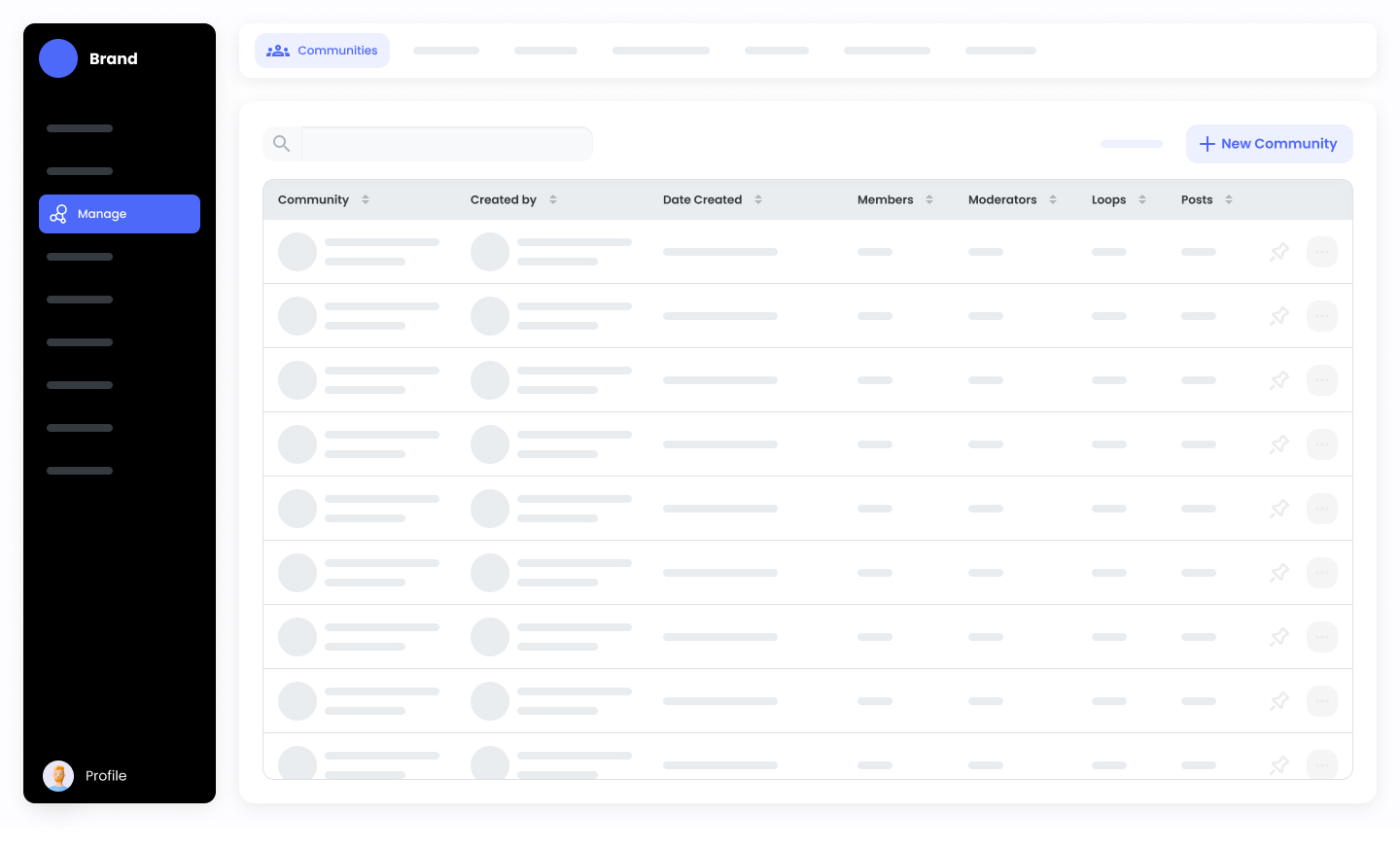
2. Navigate to **Manage > Communities.**
3. Click on **+ New Community**
 4. Fill in the Following Information
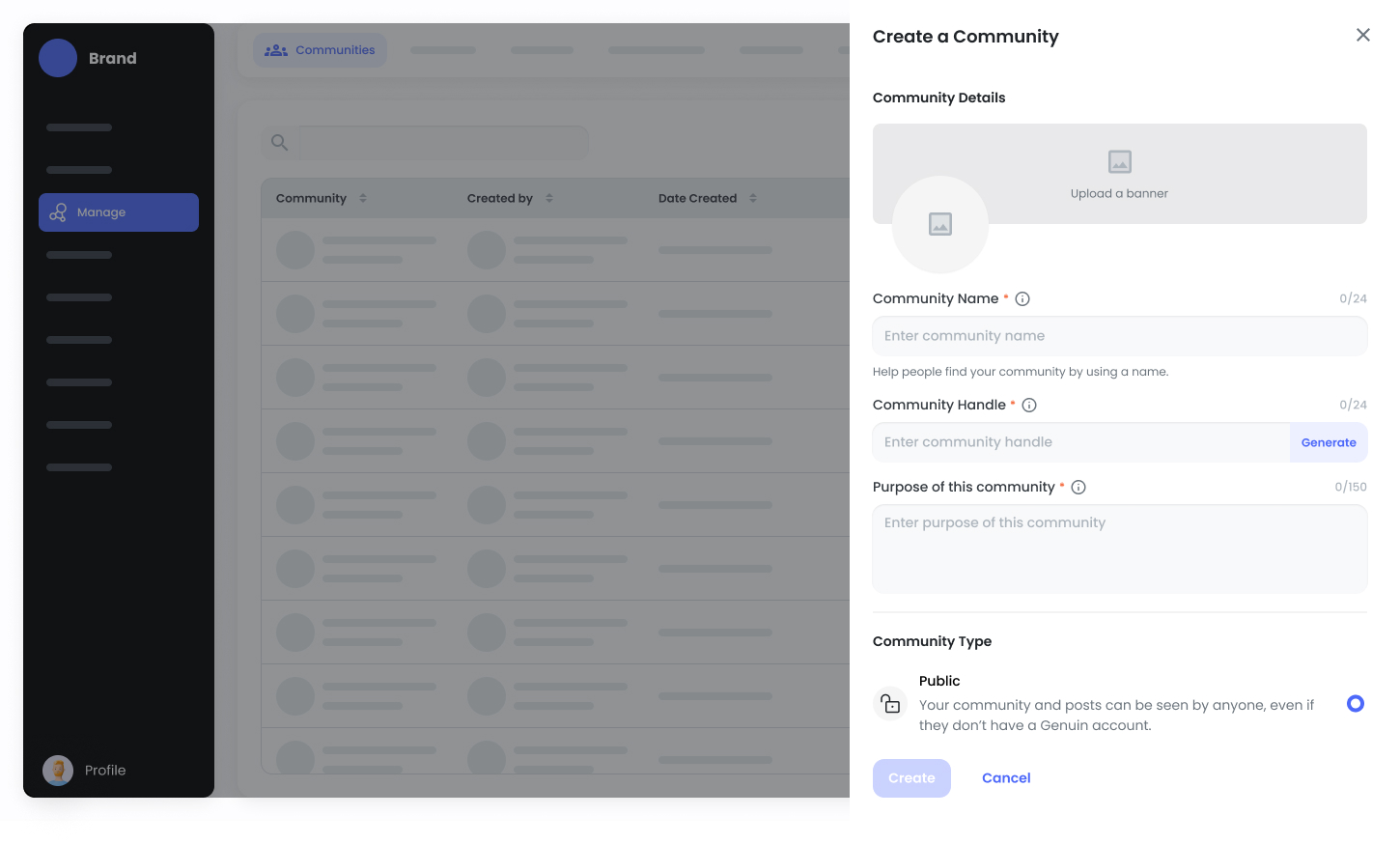 * **Upload Banner/Image**: You can upload the Banner/Community Image
* **Community Name**: Insert the Community Name
* **Community Handle**: Insert the Community Handle
* **Purpose of This Community**: Add the Purpose of the community
* **Community Type**: Select the Community type to Private or Public
* **Who Can Create Groups**: Select the Group creation rights
5. After configuring the details, click on the “**Create**” button
* **Upload Banner/Image**: You can upload the Banner/Community Image
* **Community Name**: Insert the Community Name
* **Community Handle**: Insert the Community Handle
* **Purpose of This Community**: Add the Purpose of the community
* **Community Type**: Select the Community type to Private or Public
* **Who Can Create Groups**: Select the Group creation rights
5. After configuring the details, click on the “**Create**” button